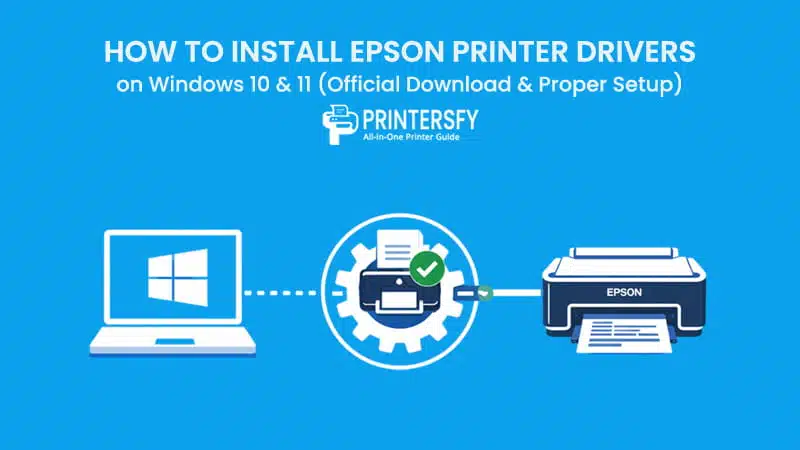
For many setups, the moment to Install Epson Printer Drivers on Windows 10 or Install Epson Printer Drivers on Windows 11 is treated as a formality. The printer appears in the device list, Windows reports it as ready, and the process feels complete. That assumption often breaks the first time a real print job is sent. What looks like a finished setup is frequently only partial recognition by the operating system.
On both Windows 10 and Windows 11, automatic updates play a dominant role in how printers are handled. When an Epson device is connected, Windows tends to prioritize speed by loading a generic driver in the background.
This approach favors instant detection, not long-term accuracy. Epson Printer Drivers exist to map Windows print commands to the printer’s actual hardware behavior, something generic drivers can only approximate.
The gap between “detected” and “usable” is where most frustration begins. A detected printer simply confirms that Windows can see the device on a USB port or network. It says nothing about whether advanced print settings, resolution control, or internal maintenance functions are available.
Without the correct driver layer, those elements remain inaccessible, even though the printer looks operational. In practice, choosing the right Epson Printer Driver Download is often the difference between a printer that merely appears connected and one that consistently produces reliable output.
What Epson Printer Drivers Actually Do on Windows
Before looking at specific installation choices, it helps to understand what the driver layer is responsible for inside the system and why shortcuts tend to create instability later.
Driver as the Communication Layer
Printer drivers sit between Windows and the device’s internal logic. They coordinate how print jobs pass through the spooler, which port the printer listens to, and how the device is identified during each session. When users Install Epson Printer Drivers on Windows 10, this layer determines whether Windows can translate a document into instructions the printer understands precisely.
Generic Windows drivers reduce this translation to a minimum. They allow basic output, but they flatten device-specific behavior. The printer becomes a generic endpoint rather than a model-aware system. This is why print jobs may queue correctly yet stall without explanation, or why settings revert after each restart.
A similar pattern appears when users Install Epson Printer Drivers on Windows 11 with mismatched or legacy packages. The installation may succeed on paper, but parts of the driver fail to integrate fully with newer security and permission handling. The result is not a clear error, but an inconsistent printing experience that feels unpredictable.
Feature Control and Stability
Epson printer software depends on dedicated driver components to expose features such as paper handling, quality presets, and maintenance utilities. Without an official driver, these controls never fully activate. Stability issues are often traced back to Epson driver compatibility problems, where the driver does not align with either the printer model or the Windows build.
Instead of obvious failures, driver mismatches create subtle instability. Print jobs complete intermittently, settings disappear, or the printer slips into an offline state without hardware issues. Over time, this erosion of reliability becomes more disruptive than a complete setup failure.
Choosing the Correct Epson Printer Driver Version
Selecting a driver is less about finding “a” driver and more about aligning the printer model, the operating system, and the source of the software.
Matching Printer Model and Windows Version
Each Epson printer series uses a specific driver package. Installing a driver intended for a different model may work just enough to pass initial checks, but it leaves gaps in communication. Attempts to Install Epson Printer Drivers on Windows 10 with an incorrect package often result in partial functionality rather than outright failure.
The margin for error narrows further when users Install Epson Printer Drivers on Windows 11. Newer system requirements enforce stricter compatibility, making precise model matching essential. A driver that worked on an older Windows version may install successfully but behave inconsistently under newer system rules.
Official vs Third-Party Driver Sources
Driver source has a direct impact on stability and security. Third-party auto-driver tools prioritize coverage over precision, frequently installing outdated or incomplete packages. By contrast, the Epson official driver download is structured around exact model and system matches. Listings on the Epson support driver page are designed to reduce ambiguity, pairing specific printers with compatible Windows versions.
Source Type Stability Feature Support Security Risk Official Epson Driver High Full Low Windows Default Driver Medium Limited Low Third-Party Installer Unstable Unpredictable High
When the driver source aligns with both the printer and the operating system, the setup becomes predictable. That alignment is what turns installation from a recurring problem into a one-time foundation for consistent printing.
Methods to Install Epson Printer Drivers on Windows 10 & 11
Installing an Epson printer driver is not a single click action. It is a controlled sequence where Windows must be guided so it does not intervene too early with generic drivers. When that sequence is followed correctly, the installation tends to be stable. When it is not, problems repeat no matter how many times the driver is reinstalled.
Installing Using the Official Epson Installer
For most setups, the official installer is the preferred starting point to Install Epson Printer Drivers on Windows 10 because it prepares the system before the printer is actively used. The key is letting the installer lead the process, not Windows.
A typical installation flow using the official installer looks like this:
- Download the correct driver package that matches the exact printer model and Windows version
- Run the installer before connecting the printer or sending any print jobs
- Allow the installer to scan the system and verify the Windows build
- Follow on-screen prompts until the installer requests the printer connection
- Connect the printer only at that stage, allowing port assignment to complete cleanly
During this process, Windows performs several background actions without obvious visual feedback. The installer registers the driver with the print spooler, assigns the correct port, and activates feature modules related to print quality and maintenance. When users Install Epson Printer Drivers on Windows 11, this stage also includes permission and driver-signing checks that must pass before integration is finalized.
The official installer works best on systems without leftover Epson drivers. Machines that have been upgraded through multiple Windows versions often retain fragments of older installations. In those cases, the installer may complete successfully but leave features unavailable. A clean environment allows the Epson driver installation to finish as a complete setup rather than a partial one.
Manual Epson Driver Installation via Windows System
Automation does not always succeed. Windows may detect the printer hardware but refuse to bind it to the correct driver package. When attempts to Install Epson Printer Drivers on Windows 10 result in a visible but unusable printer, manual installation provides direct control.
The manual process relies on Windows tools rather than Epson’s automation:
- Open Device Manager and locate the printer or unknown device
- Choose the option to update or change the driver manually
- Point Windows directly to the folder containing the Epson driver files
- Confirm the driver selection instead of allowing Windows to search automatically
- Verify that the correct port is assigned after installation completes
This approach prevents Windows from substituting a generic driver mid-process. Manual Epson driver installation is commonly used in business environments, legacy printer setups, or systems with restricted update policies. While slower, it removes ambiguity and produces predictable results when automatic methods fail silently.
Installing Epson Printer Drivers on Windows 10 & 11 Without a CD
Optical media is no longer part of most installations. When users Install Epson Printer Drivers on Windows 11 without a CD, the workflow depends entirely on download accuracy and installation order.
A clean download-based installation usually follows this sequence:
- Locate the correct driver package online for the printer model
- Download the installer to the local system
- Run the installer before connecting the printer
- Connect the printer only when prompted by the installer
- Complete setup and verify printer status in Windows settings
This scenario is common after system reinstalls, laptop upgrades, or printer replacements. The “install Epson printer without CD” approach fails most often when the printer is connected too early, allowing Windows to install a generic driver before Epson’s installer takes control.
When the correct package is used and the sequence is respected, download-based installation is often more reliable than legacy media, especially on newer Windows systems.
Differences Between Windows 10 and Windows 11 During Driver Installation
Although the installation flow appears similar, Windows 10 and Windows 11 apply different system rules that affect driver behavior long after setup completes.
System Permission and Security Handling
Windows 11 enforces stricter controls over driver signing and background changes. When users Install Epson Printer Drivers on Windows 11, the system verifies digital signatures and limits silent modifications. Drivers that pass these checks integrate cleanly; those that do not may install partially without clear warnings.
Windows 10 allows more background activity during setup. This flexibility explains why some drivers install smoothly on older systems yet behave inconsistently later. Epson driver compatibility Windows 10 issues often surface after updates, while Windows 11 tends to block incompatible drivers earlier in the process.
Compatibility with Older Epson Printers
Legacy Epson printers introduce additional constraints. When users Install Epson Printer Drivers on Windows 10, compatibility layers often preserve basic functionality, even for older models. These layers absorb differences between driver generations and modern system components.
Windows 11 is less forgiving. Update-related conflicts can disable features or interrupt communication entirely. Epson driver compatibility Windows 11 concerns are most visible with printers tied to discontinued driver branches. Installation may succeed technically, but stability depends on how closely the driver matches the system’s expectations.
These system-level differences explain why identical installation steps can produce different outcomes. The operating system shapes how drivers behave after setup, not just whether installation appears successful.
Common Issues After Installing Epson Printer Drivers on Windows 10 & 11
Even after a driver appears to install correctly, problems often surface during real-world use. These issues are rarely random. Most of them trace back to how the driver was integrated into Windows rather than to the printer hardware itself. When users Install Epson Printer Drivers on Windows 10 or Install Epson Printer Drivers on Windows 11, small mismatches in ports, services, or feature modules can create persistent failures.
Printer Installed but Not Detected
A common situation is seeing the printer listed but unable to select it for printing. In many cases, the device exists in the system but is bound to the wrong port. USB and network printers behave differently, and Windows may assign a default port that does not match the actual connection.
USB vs network confusion is especially common after reinstalling drivers or switching connection types. A printer that previously worked over USB may still be mapped to a USB port even after being moved to Wi-Fi. This is why “Epson printer not detected” errors often appear even though the device is powered on and visible.
Printer Appears Offline
An offline status usually indicates a breakdown between the driver and the print spooler. The spooler service manages print jobs in the background, and if the driver does not register correctly with it, Windows assumes the printer is unavailable.
Windows service behavior plays a role here. Updates or restarts can reset services without reinitializing the driver properly. This leads to situations where the printer shows as installed but inactive. Many reports of “Epson printer offline” are rooted in incomplete driver integration rather than network failure.
Driver Installed but Printing Fails
The most confusing failures occur when everything looks correct but nothing prints. This typically happens when only part of the driver package is installed. Core components may load, but feature-level modules remain missing.
Partial driver installation often results from interrupted setups or generic drivers being substituted mid-process. In these cases, Windows can send basic data, but the printer cannot interpret it fully. Feature-level conflicts are common, especially after users Install Epson Printer Drivers on Windows 10 using older packages that do not align with current system requirements.
Issue Likely Cause Related Driver Factor Printer not detected Wrong port Driver mismatch Offline status Spooler conflict Incomplete install Cannot print Feature driver missing Generic driver used
Why Proper Epson Driver Installation Matters Long Term
Driver installation affects more than immediate functionality. It sets the baseline for how the printer behaves over months or years of use. When users Install Epson Printer Drivers on Windows 11 or Windows 10 correctly, problems tend to decline rather than accumulate.
Stability and Print Reliability
A properly installed driver reduces error cycles. Print jobs move through the spooler consistently, ports remain stable, and the printer does not need frequent resets. Consistent device recognition prevents Windows from repeatedly re-detecting the printer as new hardware.
Over time, this stability translates into fewer interruptions and less troubleshooting. Systems where drivers were installed cleanly show fewer cases of Epson driver not installing again after updates, because the foundation is already aligned with Windows expectations.
Access to Full Epson Printer Features
Beyond stability, correct installation unlocks the full Epson printer software environment. Print quality controls, paper handling options, and maintenance utilities depend on complete driver modules. An incomplete setup limits these features or removes them entirely.
A correct Epson driver setup ensures that advanced settings remain available across updates and restarts. This consistency matters in environments where print output quality and reliability are part of daily workflows, not occasional tasks.
Wrapping Up
Installing a printer driver is not an administrative checkbox. It is the foundation that determines how the printer interacts with Windows over its entire lifecycle. When users Install Epson Printer Drivers on Windows 10 or Install Epson Printer Drivers on Windows 11 with precision, the system behaves predictably rather than reactively.
A proper setup shapes long-term experience. It affects how easily the printer reconnects, how reliably it handles updates, and how much manual intervention is needed later. The difference between repeated troubleshooting and steady operation often comes down to how the initial setup Epson printer on Windows was handled.
Drivers do not just enable printing; they define communication rules. When those rules are clear and complete, connecting the Epson printer to a Windows PC becomes a one-time task instead of a recurring problem.
FAQs About How to Install Epson Printer Drivers on Windows 10 & 11
How do I download Epson printer drivers in Windows 11?
To download drivers on Windows 11, the safest method is using Epson’s official support site. When users Install Epson Printer Drivers on Windows 11, selecting the exact printer model and matching it with the correct Windows version prevents compatibility issues caused by generic or outdated files.
Is my Epson printer compatible with Windows 11?
Most recent Epson models support Windows 11, but compatibility depends on driver availability. Before you Install Epson Printer Drivers on Windows 11, checking the model-specific support list helps avoid partial installations that limit features.
Why can’t I install an Epson printer driver?
Installation failures usually come from permission restrictions, driver conflicts, or leftover files from older setups. These issues also appear when users Install Epson Printer Drivers on Windows 10 without removing previous driver versions.
How do I get drivers for my Epson printer?
Drivers should always come from Epson’s official download channels. This ensures proper integration whether you Install Epson Printer Drivers on Windows 10 or move between Windows versions.
How to reinstall Epson printer drivers?
Reinstallation works best after fully removing the existing driver, restarting the system, then try install printer driver correct package again in the proper order.