
Most people only notice the importance of a printer driver when their printer suddenly stops working. You press “Print,” but nothing happens. The Printer sits idle, and frustration kicks in. In many cases, the issue isn’t with the printer itself, but with the small piece of software that tells your computer how to communicate with it—the driver.
A printer driver is often overlooked because it runs quietly in the background. Yet without it, your computer and printer cannot understand each other. Think of it like a translator between two people who speak different languages. Your computer speaks in code, while your printer understands instructions for placing ink or toner on paper. The printer driver converts one language into the other so your document can move from digital screen to physical page.
Understanding what a printer driver is, why it matters, and how to manage it is essential for anyone who uses a printer—whether at home, school, or in the office. This guide will break down the functions of printer drivers, the types available, and practical steps for downloading, installing, and fixing them.
What Is a Printer Driver?
Basic Definition
A printer driver is a small but essential piece of software that allows your computer to interact with a printer. Without it, your computer doesn’t know how to send the right instructions for printing. When you hit “Print” in Microsoft Word, for example, the text doesn’t magically appear on paper. Instead, the file passes through the printer driver, which converts it into a format that your printer can understand.
In simple terms: no driver, no printing.
How Printer Drivers Work
The process is easier to understand with a step-by-step flow:
- You create or open a file on your computer (a PDF, Word document, or photo).
- When you click Print, your software application sends the request to the printer driver.
- The driver translates the instructions—such as font type, color, paper size, and resolution—into a language the printer understands.
- The printer then executes these instructions and produces the physical copy.
This translation process happens in seconds, but it’s crucial. Without the correct driver, your printer may produce errors, print blank pages, or refuse to respond at all.
Printer Driver vs Printer Software vs Firmware
It’s easy to confuse printer drivers with other printer-related software. To clarify, here’s how they differ:
Component What It Is Function Example Printer Driver Small program installed on your PC/Mac Translates print commands into printer language HP LaserJet driver for Windows 11 Printer Software / Utility Optional management tools Adds features like scanning, ink level monitoring, or wireless setup Epson Smart Panel app Printer Firmware Built-in code stored inside the printer itself Runs the printer’s hardware and internal logic Canon firmware update improving wireless stability
The driver is your day-to-day essential. Printer software adds convenience, while firmware acts as the printer’s internal operating system.
Functions of a Printer Driver

Printer drivers do more than just send text to paper. They handle a variety of tasks that make printing flexible, accurate, and reliable. Understanding these functions helps you see why installing the correct driver matters.
Communication Between Devices
The most basic role of a printer driver is to act as a bridge between your computer and the printer. When you press “Print,” the driver determines how the file should be formatted. It then passes precise instructions—whether to use black ink only, how to place colors, or which paper tray to select. Without this communication layer, the printer would not know what to do with the raw data coming from your computer.
A simple analogy is a chef taking an order from a waiter. The waiter speaks in human language, while the chef needs a recipe. The printer driver turns your “order” (the file) into a recipe the printer can follow.
Customization and Features
Printer drivers also unlock the advanced features of your device. While a generic driver might allow you to print a page, the official driver from Canon, HP, Epson, or Brother lets you control important details such as:
- Print resolution (e.g., draft, standard, high-quality)
- Color management (monochrome vs full color)
- Duplex printing (single or double-sided)
- Paper type and tray selection (plain, photo, labels, envelopes)
- Scaling and layout (multiple pages per sheet, poster printing)
For instance, according to PCMag, photo enthusiasts often notice a visible difference in image quality when using the official Epson driver compared to the built-in Windows driver. The right driver ensures that the printer can reproduce colors accurately and take advantage of brand-specific technology.
Error Handling
Drivers are also responsible for sending feedback from the printer back to your computer. If there’s a paper jam, low ink warning, or connectivity issue, the driver communicates that status in real time. This is why, when your printer runs out of paper, your computer pops up a message instead of leaving you confused.
Without the proper driver, many of these warnings may never appear, leaving you guessing about why the printer stopped.
Types of Printer Drivers

Not all printer drivers are created the same. The type of driver you use can affect not only how well your printer performs but also which features you can access.
Depending on the operating system, printer brand, and user needs, there are several categories of drivers. Understanding their strengths and limitations helps you choose the right one for your workflow.
Different Types of Printer Drivers and Their Pros and Cons
| Driver Type | Description | Pros | Cons |
|---|---|---|---|
| Brand-Specific Drivers | Official drivers from manufacturers like HP, Canon, Epson, Brother, tailored for specific models. | Full access to all printer features; Reliable performance; Optimized compatibility with the intended model. | Must install separately for each printer; Compatibility issues across OS; Requires frequent updates. |
| Universal Drivers | One driver that works across many printers, often provided by HP or Xerox. | Simplifies management in multi-printer environments; Saves time for IT staff; Reduces driver clutter. | May not support advanced features; Limited customization; Not always ideal for specialized printing. |
| Built-in OS Drivers | Pre-installed drivers in Windows/macOS that activate when a printer is connected. | Plug-and-play convenience; No downloads required; Perfect for basic printing tasks. | Lacks advanced features; Limited control over quality and settings; May not support multifunction devices. |
| PCL Drivers | Developed by HP, optimized for text-heavy and high-volume office printing. | Fast and efficient; Lightweight; Works across many printers and brands. | Weak at handling complex graphics; Not ideal for design-heavy workflows; Limited color accuracy. |
| PostScript Drivers | Created by Adobe, designed for professional publishing and graphic design. | Superior rendering of graphics and fonts; Excellent for color accuracy; Ideal for design and publishing industries. | Slower performance; Resource-heavy; Overkill for simple document printing. |
| GDI (Graphical Device Interface) Drivers | Uses PC processing power instead of printer hardware to render print jobs. | Lowers printer cost; Good for personal/home use; Simplifies hardware design. | Heavy load on PC; Not efficient for large or complex jobs; Slower in office environments. |
| TWAIN Drivers | Standard interface for scanners and multifunction printers, supported on Windows & macOS. | Works with many software applications; Direct integration with image-editing/OCR tools; Cross-platform support. | Can feel outdated; May require manual updates; Sometimes less stable. |
| WIA Drivers | Microsoft’s native driver for scanning on Windows. | Built into Windows; Lightweight and fast; No extra installation needed. | Limited features compared to TWAIN; Lacks advanced scan settings; Not suitable for pro-level scanning. |
| ICA Drivers | Apple’s macOS-native driver for scanners and MFPs. | Easy integration with macOS apps; No third-party software required; Simple and convenient. | Few advanced options; Limited control for professionals; Not great for complex scanning needs. |
Dengan tabel ini, pembaca bisa cepat membandingkan setiap driver, sekaligus tetap diarahkan ke bagian penjelasan panjang di artikel.
Brand-Specific Drivers
Brand-specific drivers are the official software packages released by manufacturers such as HP, Canon, Epson, and Brother. They are developed to work seamlessly with particular printer models, ensuring that all available features can be accessed.
For example, an HP LaserJet Pro driver may unlock advanced duplex printing, toner-saving options, or security features that generic drivers cannot provide. By using these drivers, users get the most complete experience with their devices.
However, one downside is that these drivers must often be downloaded and installed separately for each printer model. Unlike universal solutions, brand-specific drivers may not work across different operating systems or models, creating potential compatibility issues.
This can be inconvenient in offices with a variety of printers, as IT staff need to maintain multiple drivers.
On the positive side, these drivers are often the most reliable choice for individuals or organizations that depend on advanced functions.
Designers, legal professionals, and businesses that require precise printing settings often prefer brand-specific drivers. They may involve more maintenance, but the control and quality they offer can outweigh the hassle of frequent updates.
Universal Drivers
Universal drivers were created to simplify management in environments where multiple printer brands or models are in use.
Companies like HP and Xerox developed universal drivers that can handle a wide range of devices without requiring separate installations for each one. This greatly reduces the time IT staff spend managing printers, especially in larger organizations.
Although they are convenient, universal drivers typically do not unlock every advanced feature. A printer may be able to perform high-resolution photo printing or unique finishing options, but those features might remain inaccessible without the brand-specific driver. As a result, while they improve efficiency, universal drivers sometimes sacrifice functionality.
Still, they remain highly practical in schools, offices, and government institutions where the priority is streamlined operations rather than specialized features.
By installing one universal driver, administrators ensure that employees can print to multiple devices without compatibility issues, making this option ideal for organizations with diverse printer fleets.
Built-in OS Drivers
Many modern operating systems, such as Windows and macOS, include built-in printer drivers. These drivers often install automatically when a printer is connected via USB or Wi-Fi.
This is why new printers frequently work immediately without the need for downloading extra software. For casual users, this plug-and-play approach is extremely convenient.
Built-in OS drivers are usually sufficient for everyday printing needs, such as school assignments, office memos, or text-heavy reports. They allow quick setup and reduce the need for additional software installation, which is particularly useful for non-technical users who simply want to print without hassle.
The limitation, however, is that built-in drivers rarely provide access to advanced features. High-quality photo printing, specialized color settings, or multifunction capabilities like scanning and faxing may not be available.
For professionals and businesses that require full control over their printer’s features, switching to brand-specific drivers is often necessary.
Specialized Printer Drivers
Beyond the standard drivers that come bundled with your printer, there are specialized printer drivers designed for particular functions. These drivers are important for professional workflows, graphic design, and document management because they determine how data is processed and translated into print.
These advanced drivers play a critical role in professional environments such as graphic design studios, publishing houses, or offices with high-volume printing requirements. They not only determine how documents are processed but also influence speed, accuracy, and the overall quality of the final output.
PCL (Printer Command Language) Drivers
PCL, or Printer Command Language, was originally developed by Hewlett-Packard and has since become one of the most widely adopted printer languages across different brands. The primary strength of PCL lies in its ability to process text documents quickly and efficiently, which makes it highly suitable for environments where large volumes of paperwork need to be produced every day.
Its lightweight structure means less processing is required on the printer side, resulting in faster print speeds and reduced resource usage.
Because of these advantages, PCL drivers have long been favored in enterprise settings. Offices that regularly handle text-heavy files such as invoices, reports, or forms benefit from the speed and reliability PCL offers. However, its limitations become clear when more complex print jobs are involved.
Graphics, high-resolution images, or design-heavy documents are not its strong suit, as the driver is optimized primarily for text. This trade-off makes PCL highly efficient in one area but less versatile when compared to other drivers designed for precision graphics.
PostScript Drivers
While PCL excels in speed and efficiency, PostScript takes a very different approach. Developed by Adobe, this driver was designed with graphic design and publishing in mind. Its main strength lies in how it interprets complex graphics, vector illustrations, and custom fonts.
PostScript does not simply send raw text to the printer; instead, it translates each page into a precise description of shapes, colors, and layouts. This ensures that what you see on your screen is exactly what appears on paper, a feature that professionals value highly.
In industries where color fidelity and layout accuracy are non-negotiable, PostScript drivers are often the standard choice. Designers, publishers, and advertising agencies rely on them to ensure that every fine detail of a poster, brochure, or magazine spread is faithfully reproduced.
The downside, however, is that PostScript requires more processing power, both from the computer and the printer. This can lead to slower print times compared to PCL. Yet for those who prioritize accuracy over speed, the trade-off is well worth it.
GDI (Graphics Device Interface) Drivers
Another important type is the GDI driver, which is closely tied to the Windows operating system. Instead of relying on the printer to interpret print jobs, GDI shifts most of the processing work to the computer.
The operating system converts the document into a format the printer can handle, making the printer itself simpler and often less expensive. This approach explains why many budget printers in the consumer market use GDI drivers.
However, the reliance on the computer’s resources can also be a weakness. Large or complex print jobs may slow down a system significantly if the computer does not have enough processing power or memory.
On the other hand, for everyday home use—like printing assignments, tickets, or standard documents—GDI drivers provide a cost-effective solution. They highlight the trade-off between affordability and performance, showing why not all printers are built for heavy-duty office environments.
TWAIN Drivers
TWAIN drivers are slightly different because they are associated more with scanning functions than printing itself. Acting as a bridge between imaging devices and software, TWAIN makes it possible for applications like Photoshop or Acrobat to directly access a scanner’s capabilities.
Many multifunction printers come with TWAIN support, ensuring that users can scan documents straight into editing or archiving programs without needing complicated setups.
This cross-platform compatibility—working on both Windows and macOS—has made TWAIN a long-standing standard. Yet, it is not without flaws.
Older TWAIN drivers are sometimes heavy, prone to crashes, or require manual updates to stay stable. Still, for those who frequently digitize documents and want smooth integration with software tools, TWAIN remains indispensable.
WIA (Windows Image Acquisition) Drivers
While TWAIN works across platforms, Microsoft developed its own framework for Windows called WIA, or Windows Image Acquisition. The goal of WIA is simplicity: it allows Windows applications to access scanners and multifunction devices without extra installations.
When you plug a scanner into a Windows computer, WIA often enables it to work instantly, which is a big advantage for users who prefer quick, straightforward setups.
However, this convenience comes with limitations. WIA generally supports only basic scanning functions, lacking advanced options like duplex scanning, color calibration, or OCR integration.
For students or casual users who just need a quick scan of a document or photo, WIA is more than enough. But professionals requiring fine-tuned control may find it too limited, pushing them to rely on TWAIN or brand-specific alternatives instead.
ICA (Image Capture Architecture) Drivers
On the macOS side, Apple created ICA, or Image Capture Architecture, which functions similarly to WIA. It integrates seamlessly with Apple’s built-in apps like Preview and Image Capture, allowing users to connect scanners and multifunction printers with almost no effort.
Like WIA, ICA is streamlined, lightweight, and avoids the hassle of third-party software installations.
The simplicity makes ICA appealing for everyday tasks, but it does not provide the granular controls that some professionals need. Advanced resolution adjustments, custom scanning profiles, or enhanced color correction are often missing.
For most macOS users, this is not an issue, as their primary concern is convenience and reliability. But for advanced imaging workflows, ICA may need to be supplemented with manufacturer-specific drivers or specialized applications.
How to Download Printer Drivers

Getting the correct printer driver is the first step toward ensuring smooth performance. While many systems install drivers automatically, downloading the right one manually often gives you access to advanced features and better stability.
Official Manufacturer Websites
The safest and most reliable way to get a printer driver is through the official website of the manufacturer. Companies like HP, Canon, Epson, and Brother maintain dedicated support pages where you can search by model number and operating system.
For example, HP’s support page allows you to enter “HP LaserJet Pro M404dn” and then download the exact driver for Windows 11 or macOS Ventura. This eliminates compatibility issues and ensures you are using the latest version.
According to Canon’s documentation, using outdated or third-party drivers can sometimes lead to issues like print spooler crashes or missing features. That’s why tech experts consistently recommend downloading directly from the brand’s website.
Automatic Installation via Operating System
Modern operating systems, such as Windows 10/11 and macOS, often detect new printers automatically. When you connect a printer via USB or add it through Wi-Fi, the system installs a compatible driver instantly.
This is convenient for quick use, but it may not unlock special features such as advanced color management or duplex scanning. If you only print basic documents, automatic drivers may be enough. For professional needs—like high-resolution photo printing—you’ll want the full driver package.
Third-Party Driver Tools
There are also third-party tools like Driver Booster or DriverPack Solution that claim to update drivers automatically. While these may seem convenient, they carry some risk. Many IT professionals caution against relying on them, since unofficial drivers can contain malware or may not be optimized for your printer.
As noted by TechRadar, the best practice is always to stick with official sources. If you do use a third-party tool, double-check that the downloaded driver matches your printer model and operating system version.
When to Update Drivers
Even if your printer seems to work fine, updating drivers periodically can improve compatibility and fix hidden issues. Manufacturers often release updates to patch bugs, improve performance, or support new operating systems.
For example, when Windows 11 launched, several older HP and Epson models required updated drivers to prevent connection failures. Users who relied on built-in Windows drivers sometimes encountered errors until they switched to the updated official versions.
How to Install Printer Drivers
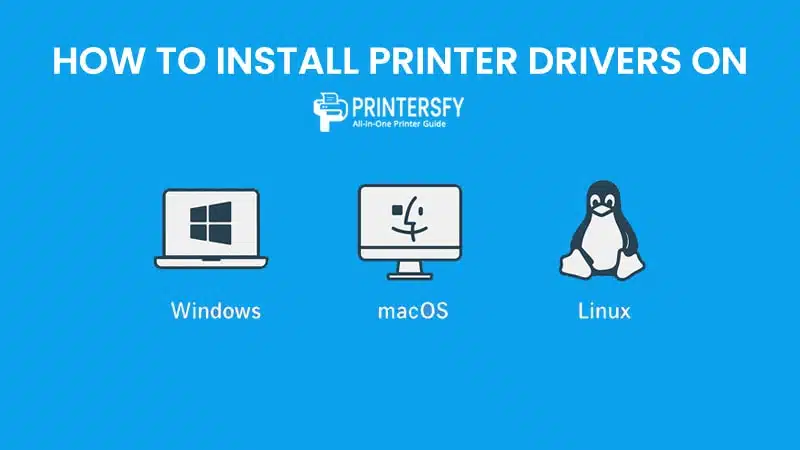
Once you’ve downloaded the right driver, installation is usually straightforward. Still, the steps vary slightly depending on your operating system.
Installing on Windows
- Download the driver from the manufacturer’s support site.
- Locate the downloaded
.exefile and double-click to start installation. - Follow the on-screen prompts—these may include license agreements or setup options.
- Connect your printer when instructed (via USB or Wi-Fi).
- Finish setup and print a test page to confirm installation.
In many cases, Windows Update can also install drivers automatically. But using the official installer ensures full functionality.
Installing on macOS
- Download the driver (often provided as a
.dmgfile). - Open the file and drag the printer software into the Applications folder.
- Go to System Preferences > Printers & Scanners.
- Click the + button, select your printer, and assign the correct driver.
- Print a test page to verify everything works.
Apple also offers AirPrint, which allows many printers to work without extra drivers. However, AirPrint may not support advanced settings like custom paper sizes.
Installing on Linux
Linux distributions like Ubuntu or Fedora often detect printers automatically. Many popular printer brands offer Linux-compatible drivers in .deb or .rpm formats. If not, users may rely on the open-source CUPS (Common Unix Printing System).
Linux users on forums like r/linuxprinting often recommend checking the OpenPrinting database, which lists compatible drivers and installation guides.
Quick Installation Guide for Printer Drivers
| Operating System | Download Method | Installation Steps | Notes |
|---|---|---|---|
| Windows 10/11 | Official site or Windows Update | 1. Download .exe file2. Run installer3. Follow prompts4. Connect printer5. Print test page | Official drivers unlock full features; Windows Update gives basics only |
| macOS (Ventura/Monterey, etc.) | Manufacturer site or AirPrint | 1. Download .dmg file2. Open and install3. Add printer in Printers & Scanners4. Print test page | AirPrint works instantly but may miss advanced options |
| Linux (Ubuntu, Fedora, etc.) | OpenPrinting database or brand site | 1. Install .deb/.rpm driver2. Or rely on CUPS auto-detect3. Add printer in Settings4. Print test page | Some brands (like Brother) provide solid Linux drivers |
How to Update and Maintain Printer Drivers
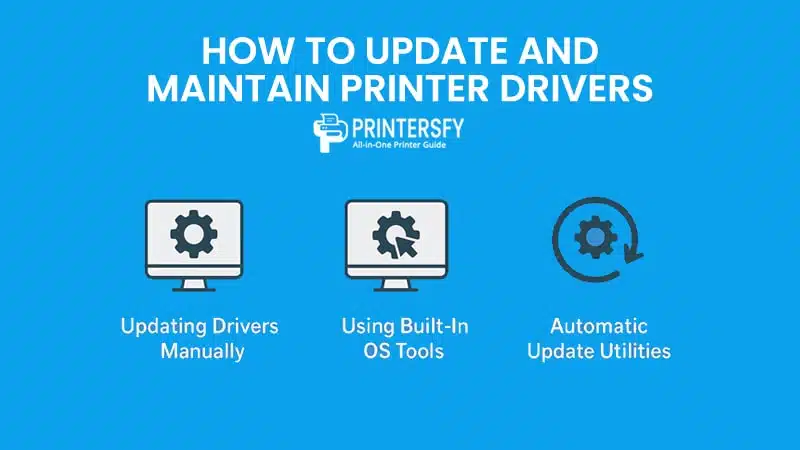
Keeping your printer driver up to date is just as important as installing it in the first place. An outdated driver can lead to printing errors, missing features, or even system crashes. Regular maintenance ensures smooth performance and compatibility with your operating system.
Updating Drivers Manually
The most reliable way to update a printer driver is by downloading it directly from the manufacturer’s official website.
Steps:
- Identify your printer’s model and exact version (check the printer label or control panel).
- Visit the support/download page of the manufacturer (e.g., HP, Canon, Epson, Brother).
- Select the correct driver for your operating system (Windows, macOS, Linux).
- Download and install the package, then restart your device.
💡 Example: Epson recommends users manually install the full driver package instead of relying on Windows Update to ensure all advanced features (like borderless printing and scanning tools) work properly.
Using Built-In OS Tools
Both Windows and macOS provide built-in tools that can automatically detect and install drivers.
- Windows Update: Often installs basic drivers, but these may lack advanced functions.
- Device Manager (Windows): Allows you to update or roll back drivers manually.
- macOS AirPrint: Automatically detects many printers without extra drivers, though some features may be missing.
According to Apple Support, AirPrint is compatible with thousands of printers, but users who require detailed color profiles or advanced settings should still install the official drivers.
Automatic Update Utilities
Some printer manufacturers offer dedicated utilities that notify you of driver updates.
- HP Smart (HP printers)
- Epson Software Updater
- Canon My Printer Utility
- Brother iPrint&Scan
These tools not only update drivers but sometimes also update firmware, which can improve overall performance and security.
Best Practices for Maintenance
- Regular Checks: Review drivers after major OS updates (e.g., Windows 10 → Windows 11).
- Uninstall Old Drivers: Remove outdated drivers to avoid conflicts, especially if you switch printers.
- Backup Settings: Save custom printing profiles before updating drivers.
- Use Official Sources Only: Avoid third-party driver websites, as these may distribute outdated or unsafe files.
Consumer Reports highlights that many printing errors are caused by outdated drivers that users simply forget to update—making regular maintenance a must.
Conclusion
Printer drivers may not be something you think about every day—until they stop working. They are the invisible link that allows your computer and printer to communicate effectively. Without the right driver, even the most advanced printer is just a bulky piece of hardware.
From understanding the different types of drivers (PCL, PostScript, GDI, TWAIN, WIA, ICA) to knowing how to install, update, and troubleshoot them, users can avoid many common printing frustrations. Whether you’re setting up a new printer at home, managing a fleet of devices in an office, or recovering from a driver crash, knowing the basics of printer drivers is essential.
Keeping them updated, using only official sources, and following best practices ensures your printer performs at its best—reliably, securely, and with full functionality.
FAQs About Printer Drivers
What happens if I don’t install a printer driver?
Without a proper driver, your printer may not be detected, or it will only use very limited basic functions.
Can I use a universal print driver instead of the official one?
Yes, universal drivers can work for basic tasks, but they may lack advanced features like duplex printing or high-resolution options.
How often should I update my printer driver?
Check for updates at least twice a year, and always after major operating system upgrades.
Is it safe to download drivers from third-party websites?
No. Always download from the printer manufacturer’s official website to avoid malware or compatibility issues.
Why does my printer stop working after a Windows or macOS update?
System updates sometimes break driver compatibility. Reinstalling the official driver usually resolves the issue.