
If you’ve ever set up a new printer, chances are you’ve faced the same moment of confusion: the installation wizard asks for a driver, and you’re not quite sure which one to pick. Maybe you just clicked “next” and hoped for the best—only to find your prints came out garbled or the printer refused to respond at all. This is where the PCL Driver comes in, often quietly doing the heavy lifting to make sure your documents look right on paper.
The term might sound technical, but it’s actually one of the most common Printer drivers used worldwide. Short for Printer Command Language, PCL was first developed by HP decades ago and quickly became a standard across many printer brands. Even if you’re not aware of it, there’s a good chance your office or home printer is running on a PCL driver. It’s designed to translate what you see on screen—your text, spreadsheets, or forms—into instructions that the printer can understand. Without it, the connection between your computer and the printer is basically broken.
What makes PCL drivers interesting is how they strike a balance between speed and reliability. Unlike more graphics-focused drivers such as PostScript, PCL drivers are optimized for everyday documents: contracts, invoices, reports, and school assignments. That’s why businesses with heavy text-printing needs, from law firms to universities, often rely on them. According to reports from IDC, a large portion of enterprise printers shipped in the last decade came bundled with PCL support, reinforcing its role as a universal standard.
At the same time, there’s a practical side to why PCL is still relevant. It’s not just about printing quickly—it’s about broad compatibility. A single PCL driver can often support multiple devices, saving IT teams from headaches when managing mixed printer fleets. On forums like r/printers, users frequently note that installing the PCL version of a driver solved problems that other “default” drivers couldn’t fix.
So, whether you’re a casual user who just wants hassle-free printing, or an IT manager overseeing hundreds of devices, understanding how PCL drivers work is worth your time. In the sections that follow, we’ll explore what they are, how they function, their strengths and limitations, and why they remain essential in the printing world.
What is PCL Driver?
A PCL Driver is essentially the translator between your computer and your printer. PCL stands for Printer Command Language, a page description language originally created by Hewlett-Packard (HP) in the 1980s. Instead of your computer sending raw data that a printer might not recognize, the PCL driver converts text, numbers, and simple graphics into standardized commands the printer can easily interpret.
Unlike generic drivers that come preinstalled with operating systems, PCL drivers are specifically optimized for document-heavy tasks. This makes them especially popular in environments where speed and reliability matter more than high-resolution graphics. In practice, that means faster output for text documents, smoother handling of fonts, and better consistency across different printer models.
It’s also worth noting that PCL drivers aren’t limited to HP anymore. Over time, they’ve been adopted by many manufacturers, making them a near-universal option for both office and home printing needs. Whether you’re using a Canon, Ricoh, or Kyocera printer, chances are you’ll find a compatible PCL driver available.
The Role of PCL in Printing Technology
PCL has played a significant role in shaping how printers work today. Before its introduction, every printer had its own proprietary command language, meaning a document created on one system might not print correctly on another. HP’s introduction of PCL simplified this by establishing a more universal standard.
According to TechRadar, one of the key strengths of PCL lies in its efficiency: it’s designed to process text-heavy print jobs with minimal system resources. That means documents are sent to the printer faster, and users spend less time waiting for pages to appear. This is especially important in workplaces where dozens—or even hundreds—of print jobs are queued daily.
In schools, government offices, and businesses, PCL drivers provide the consistency needed to ensure that documents look the same no matter which printer they’re sent to. The result is a language that bridges different hardware and software systems without requiring excessive customization.
Versions of PCL Driver

Like most core printing technologies, PCL drivers have gone through multiple iterations. Each version was created to meet the demands of its time—whether it was simple home printing in the 1980s or high-volume office tasks in the 2000s. Understanding the differences can help you see why some printers still rely on older versions while others have moved forward with more advanced capabilities.
PCL 3
When Hewlett-Packard first introduced PCL 3, the focus was on simplicity and accessibility. This version became the backbone of entry-level inkjet printers, which were gaining popularity for personal and home use.
PCL 3 supported basic text and low-resolution graphics, enough for school assignments, invoices, or everyday correspondence. It wasn’t designed for high-quality photos or complex layouts, but that wasn’t the priority at the time. What mattered was affordability and compatibility, and in that sense, PCL 3 delivered. Even today, some budget-friendly inkjet printers still rely on this stripped-down version because of its low memory requirements and straightforward design.
PCL 5
By the early 1990s, printing needs had changed. Businesses were handling larger volumes of documents and needed something more capable than the limited features of PCL 3. That’s when PCL 5 came into play.
PCL 5 introduced scalable fonts and improved graphics handling, which was a game-changer for office environments. Instead of being limited to fixed-size fonts, users could print documents with a more polished look. Graphics, charts, and logos came out sharper, which was especially useful for reports, presentations, and client-facing materials.
It quickly became a standard in many business-class printers, particularly laser printers models, and remained popular throughout the 1990s and 2000s. While newer versions exist, some offices still use PCL 5 drivers because of their reliability and compatibility with legacy systems. In other words, it’s the “workhorse” version that kept printing efficient for decades.
PCL 6 (PCL XL)
As computing power advanced, so did expectations for print quality and speed. That led to PCL 6, often referred to as PCL XL. Unlike its predecessors, PCL 6 was designed for the modern age of printing—one that demanded faster processing, richer graphics, and better error handling.
PCL 6 introduced a more streamlined command structure, which meant less data needed to be sent between the computer and the printer. This not only sped up print jobs but also reduced the chances of errors or crashes mid-print. For graphics-heavy documents, such as brochures or detailed charts, PCL 6 provided a noticeable improvement in clarity and consistency.
Another strength of PCL 6 is its backward compatibility. Printers supporting PCL 6 can usually handle older PCL 5 or even PCL 3 documents, ensuring smooth transitions for businesses upgrading their hardware. Today, most modern HP printers and multifunction devices come with PCL 6 as the default driver, making it the go-to choice for anyone looking for both speed and quality.
Why Versions Still Matter?
While it might seem like PCL 6 makes older versions obsolete, that’s not entirely the case. Some environments—especially those running legacy applications or operating systems—still rely on PCL 5. At the same time, entry-level printers with limited hardware might stick with PCL 3 for its efficiency.
For users, knowing the differences helps in choosing the right driver. If you just need to print text documents, PCL 3 may suffice. For businesses balancing speed, compatibility, and decent graphics, PCL 5 still works well. And for modern workloads requiring the best output and reliability, PCL 6 is the clear winner.
Comparison of PCL Driver Versions
| Version | Key Features | Best Use Case | Limitations |
|---|---|---|---|
| PCL 3 | Basic text and simple graphics, low memory requirements | Entry-level inkjet printers, home or school printing | Limited resolution, no advanced features |
| PCL 5 | Scalable fonts, better graphic support, reliable performance | Business-class printers, office documents, legacy systems | Less optimized for speed and modern graphics |
| PCL 6 (PCL XL) | Faster processing, enhanced graphics, improved error recovery, backward compatibility | Modern office environments, graphics-heavy printing, multifunction printers | More complex, may not be fully compatible with very old systems |
How PCL Drivers Work

PCL drivers don’t just “tell” the printer what to do — they break down every detail of a document into commands that the hardware can process efficiently. To understand how they work, let’s break it into four core elements.
Printer Control Language
At the core is Printer Control Language (PCL) itself, which serves as the instruction set. Every time you hit Print, your computer passes the document to the driver, which converts it into PCL commands. These commands cover page layout, fonts, spacing, and simple graphics.
For example, if you’re printing a two-page Word document with Times New Roman, the driver doesn’t just send raw text. It translates the instructions into “use Times New Roman at 12pt, align text to the left, set margins to one inch,” and so on. The printer then reproduces this with accuracy.
This structured approach ensures that even across different printers, the core output remains predictable and consistent.
Device-Dependent Rendering
Unlike PostScript drivers, which render most of the page image on the computer before sending it, PCL drivers rely on the printer to do a lot of the heavy lifting. The driver sends relatively lightweight commands, and the printer’s hardware interprets and renders the page.
This device-dependent rendering is a double-edged sword:
- On one hand, it reduces the processing burden on the PC.
- On the other, output quality may vary depending on the printer’s processing power and internal memory.
In offices with multiple printer models, this means the same document might look slightly different depending on whether it’s printed on an entry-level or high-end device.
Faster Processing
Because PCL drivers offload much of the rendering to the printer, jobs generally process faster. This is especially noticeable in environments where documents are mostly text, such as invoices, reports, and memos.
Consider a busy legal office where dozens of contracts need to be printed daily. PCL drivers ensure that those jobs start printing almost immediately, rather than waiting for the computer to rasterize each page first. The result is higher throughput and less bottleneck at the printer queue.
Speed becomes a decisive advantage when compared with other driver technologies like PostScript, which may offer better graphics quality but often takes longer to render complex documents.
Operating System Support
Another critical reason PCL drivers are so widely adopted is their broad OS support. Microsoft Windows, in particular, integrates PCL drivers seamlessly, which explains why they dominate in office environments.
While macOS and Linux tend to lean toward PostScript, PCL still has cross-platform compatibility in many cases. IT departments often prefer PCL drivers because they can install one universal driver across different machines without worrying about compatibility issues.
How PCL Drivers Handle Printing Compared to Other Approaches
| Feature | PCL Driver | PostScript Driver | GDI Driver |
|---|---|---|---|
| Rendering Location | Printer hardware | Computer (software-based) | Computer (Windows only) |
| Speed | Fast (optimized for text) | Slower (graphics-heavy) | Moderate |
| Resource Usage | Low PC usage | Higher PC usage | Higher PC usage |
| Output Consistency | Varies by device | Consistent across devices | Windows-only consistency |
| Best Use Case | Office docs, high-volume text | Graphic design, publishing | General home/office Windows printing |
This table highlights why IT teams often choose PCL drivers: they balance speed, simplicity, and compatibility, even if they don’t always deliver the richest graphic output.
Key Characteristics of PCL Drivers
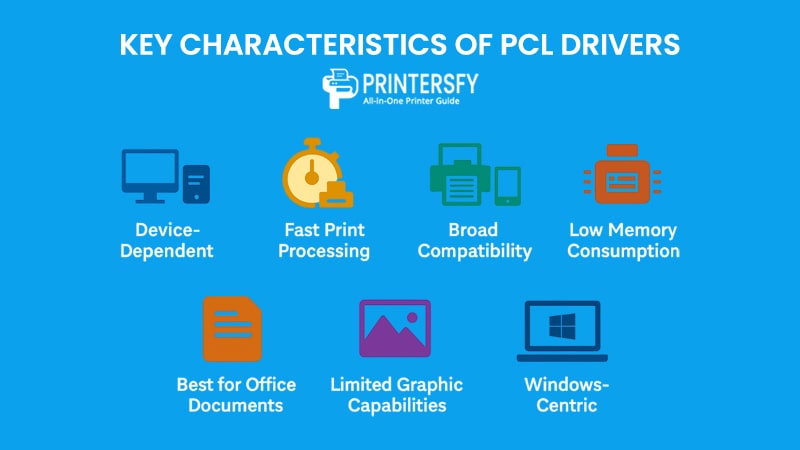
PCL drivers have distinct strengths and weaknesses that make them stand out compared to other printer drivers. By understanding these characteristics, IT administrators and end-users can decide whether PCL is the right choice for their printing environment.
Device-Dependent
One of the most defining traits of PCL drivers is their device-dependent rendering. Unlike PostScript, where much of the work is done by the computer, PCL relies on the printer’s hardware to interpret commands.
This means two things:
- The driver itself is lightweight, which reduces stress on the PC.
- The final output may vary depending on the printer model.
For companies with standardized fleets of printers, this isn’t a problem. But in mixed environments, subtle differences in output quality can appear from one device to another.
Fast Print Processing
Speed has always been a hallmark of PCL. The driver passes only necessary commands, allowing the printer to start outputting almost immediately. This is especially useful in document-heavy workflows such as banks, schools, or government offices where long queues are common.
In practice, users benefit from less time waiting for their pages. Businesses, in turn, experience fewer bottlenecks, which can save significant productivity hours across large teams.
Broad Compatibility
Another standout feature is compatibility across devices and brands. Even though PCL was created by HP, nearly every major printer manufacturer today provides support for it.
This makes deployment simpler for IT teams because:
- One universal driver can support multiple devices.
- Users can switch between printer models without reinstalling new drivers.
In contrast, proprietary drivers may require custom installs and updates, complicating management in large organizations.
Low Memory Consumption
PCL drivers are known for their efficient memory usage. Since much of the rendering work is handled by the printer, PCs don’t need to allocate large amounts of RAM or processing power to handle print jobs.
This is particularly beneficial in offices where older computers are still in use, as the workload is shifted away from the system. Even on entry-level printers, PCL can process jobs smoothly without demanding much system memory.
Best for Office Documents
When it comes to text-based documents such as contracts, forms, invoices, and letters, PCL drivers excel. They deliver crisp fonts, reliable formatting, and quick throughput.
This explains why PCL is often the go-to choice for corporate and government offices. It handles long print runs with fewer hiccups and ensures that business-critical paperwork is processed quickly.
However, its strength in text-heavy documents also highlights its limitations in areas where advanced graphics are required.
Limited Graphic Capabilities
While PCL can handle simple graphics, it doesn’t match the sophistication of PostScript drivers in reproducing high-resolution images or complex designs.
For example:
- A company logo with gradient colors may not appear as accurately on PCL.
- Marketing materials with intricate layouts may lose detail.
This limitation doesn’t affect daily office tasks but makes PCL less ideal for industries like publishing or graphic design where visual accuracy is paramount.
Windows-Centric
Finally, PCL drivers are most closely associated with the Windows ecosystem. Microsoft has long integrated PCL drivers into its OS, making them the default choice for countless office setups.
While PCL can be used on other systems like Linux or macOS, PostScript is more common there. As a result, organizations with cross-platform needs often combine both driver printers types to ensure compatibility.
Summary Key Characteristics of PCL Drivers
| Characteristic | Benefit | Limitation | Best Use Case |
|---|---|---|---|
| Device-Dependent | Lightweight, faster job transfer | Output varies by printer | Offices with uniform printer models |
| Fast Processing | Quick start, reduced waiting time | May sacrifice some graphics | High-volume text printing |
| Broad Compatibility | Works across brands/models | Some older printers lack full support | IT environments with mixed printers |
| Low Memory Use | Minimal PC resource consumption | Relies on printer hardware | Offices with older PCs |
| Office Document Focus | Crisp, reliable text printing | Weak in high-resolution graphics | Contracts, invoices, reports |
| Limited Graphics | Handles basic shapes & fonts | Poor at complex images | Non-design environments |
| Windows-Centric | Deep OS integration | Limited cross-platform features | Windows-based organizations |
Key Features of PCL Drivers
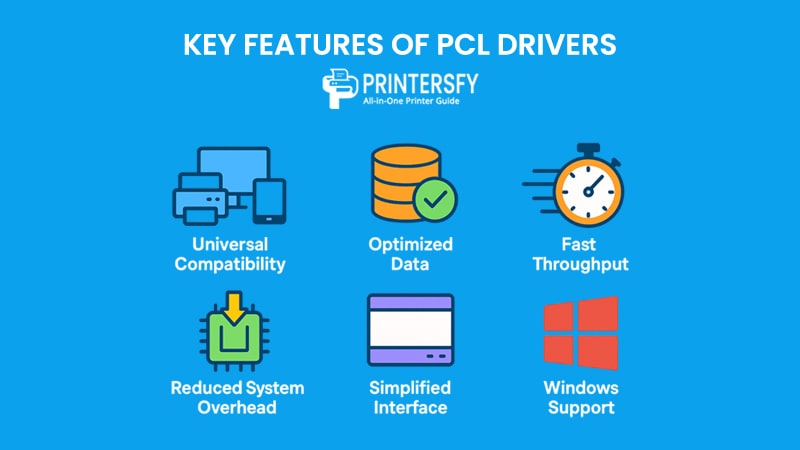
While characteristics describe how PCL drivers behave, their features explain why they remain one of the most widely used standards in the printing industry. These features focus on usability, performance, and flexibility—key elements that benefit both individual users and IT departments managing hundreds of printers.
Universal Compatibility
One of the biggest selling points of PCL drivers is their universal compatibility. Whether you’re running a simple desktop printer at home or a heavy-duty multifunction device in an enterprise, chances are the PCL driver is supported.
For IT administrators, this universality translates into fewer headaches:
- A single driver package can work across different devices.
- Reduces the need for constant driver updates.
- Simplifies deployment in large organizations.
This is why global enterprises often standardize on PCL drivers, ensuring smooth interoperability across varied fleets.
Optimized Data
PCL drivers are efficient in how they package data. Instead of sending every detail pixel by pixel, they transmit high-level commands that the printer interprets on its own.
For example:
- If you print a 20-page report, the driver doesn’t need to describe every single character. It sends font and layout instructions once, then reuses them.
- This keeps file sizes smaller and reduces the amount of data transferred between computer and printer.
The result is faster performance, especially when dealing with repetitive document formats like invoices or standardized forms.
Fast Throughput
Because of their optimized data handling, PCL drivers are known for fast throughput. This means less waiting around the printer for jobs to complete.
- A queue of 100-page reports can start printing within seconds.
- Businesses handling customer transactions benefit from near-instant receipts.
- Schools and universities save time during exam seasons where thousands of pages are printed daily.
In real-world use, this makes PCL one of the most practical drivers for high-volume environments.
Reduced System Overhead
Unlike GDI drivers, which rely heavily on the host computer to render print jobs, PCL offloads much of the work to the printer itself. This reduces the system overhead on PCs and servers.
The advantages are clear:
- Computers remain responsive even while handling large print tasks.
- Older PCs can still function effectively in modern offices.
- Network bandwidth is preserved because smaller files are transmitted.
This efficiency ensures that printing doesn’t slow down other tasks on the user’s machine.
Simplified Interface
Another underrated feature is the simple, consistent interface of PCL drivers. End-users don’t need to navigate overly complex menus to print basic documents.
While advanced drivers may offer detailed customization for graphics or layouts, PCL focuses on reliability and ease of use. For non-technical users, this is a big win—printing becomes straightforward, with fewer chances to misconfigure settings.
Windows Support
Finally, PCL drivers enjoy deep integration with Windows. They’ve been part of the Microsoft ecosystem for decades, making them the default driver type for many printers.
This support includes:
- Easy plug-and-play installation.
- Built-in compatibility with most office applications.
- Seamless performance with Windows-based print servers.
Although macOS and Linux support PCL as well, the strongest adoption remains in Windows environments—further solidifying its role in offices worldwide.
Key Features of PCL Drivers & Real-World Application
| Feature | Benefit | Real-World Application |
|---|---|---|
| Universal Compatibility | Works across printer brands and models | Simplifies IT management in large organizations |
| Optimized Data | Smaller print job sizes, efficient transfer | Faster printing of repetitive forms or reports |
| Fast Throughput | High-speed printing for long queues | Schools, banks, government offices |
| Reduced System Overhead | Less strain on PCs and networks | Offices with older computers or limited bandwidth |
| Simplified Interface | Easy to use, fewer errors | Everyday office workers, home users |
| Windows Support | Deep OS integration | Businesses standardized on Windows servers |
What PCL Drivers May Lack

Although PCL drivers are known for speed and reliability, they aren’t perfect. Certain features and capabilities are either limited or absent compared to other driver types. Recognizing these gaps is important for businesses and individual users who need advanced functionality or specific print quality.
Graphical User Interface (GUI)
PCL drivers typically provide a basic user interface. While this simplicity makes them easy to use, it also limits customization.
- Advanced layout settings may not be accessible.
- Users can’t easily preview complex print jobs.
- Some features require manual configuration through the printer rather than the driver.
For environments that demand fine control over print output—such as marketing teams or designers—this can be a significant drawback.
Advanced Printing Options
When compared to PostScript or manufacturer-specific drivers, PCL often lacks advanced printing options. For instance:
- Color management tools are basic.
- Complex page imposition (such as booklet printing) may not be supported.
- Features like watermarking, secure release printing, or finishing (stapling, hole punching) may only appear in proprietary drivers.
This makes PCL less appealing for industries that need precision layouts or professional-grade output.
High-Resolution Features
PCL drivers can handle simple graphics, but they aren’t designed for high-resolution printing. If you’re printing:
- Detailed photographs
- Marketing collateral
- Publications with fine design elements
The results often fall short compared to PostScript or specialized graphics drivers. Text and basic shapes remain crisp, but gradients, vector graphics, and high-DPI images may lose quality.
Device-Specific Features
Another limitation is that PCL doesn’t expose many device-specific capabilities. Manufacturers often design unique functions for their printers—such as eco modes, cloud integration, or custom finishing—but these may not appear in a standard PCL driver.
As a result:
- Users miss out on features unique to their printer model.
- Advanced functions remain locked behind proprietary drivers.
- IT teams may need to install both PCL and manufacturer drivers to access the full range of options.
Limitations of PCL Drivers
| Limitation | What It Means | Who It Affects Most |
|---|---|---|
| Limited GUI | Basic interface, fewer customization options | Designers, advanced users |
| Fewer Advanced Options | Missing booklet printing, watermarking, etc. | Businesses with specific workflows |
| Lower High-Res Support | Poorer handling of graphics and photos | Marketing, publishing, design |
| Lacks Device Features | Ignores printer-specific capabilities | Users of multifunction or high-end printers |
PCL drivers are a practical choice for everyday office printing. However, if your needs go beyond text-heavy documents and into the realm of design, publishing, or advanced document management, their limitations become clear. In such cases, PostScript or manufacturer-specific drivers are often the better fit.
When to Use a Generic PCL Driver
Not all printing environments need a custom, manufacturer-specific driver. In many situations, a generic PCL driver is the most practical solution. These drivers are designed to work across a wide range of printers without requiring unique configurations for each model. For IT teams and casual users alike, they can reduce complexity while ensuring consistent performance.
Mixed Environments
In offices where multiple printer brands and models coexist, installing separate drivers for each device can become a nightmare. A generic PCL driver simplifies this setup by offering broad compatibility.
- Employees can connect to any printer without needing admin assistance.
- IT staff can cut down on driver deployment and maintenance.
- Organizations avoid conflicts that sometimes occur when multiple proprietary drivers are installed on the same system.
This makes PCL drivers especially valuable in large enterprises, schools, and government offices where printer diversity is high.
Reduced Complexity
Another scenario where generic PCL drivers shine is when organizations want to reduce IT complexity.
Instead of juggling dozens of drivers and updates, a single PCL driver can cover most needs. This not only saves time but also lowers the risk of configuration errors. For small businesses without a dedicated IT department, this approach keeps printing reliable without extra technical overhead.
Standard Printing Needs
If the majority of printing involves standard office documents—text, spreadsheets, reports, or forms—there’s little need for advanced driver features.
Generic PCL drivers handle these tasks with speed and reliability, making them a cost-effective choice. The trade-off of losing advanced graphics or finishing options doesn’t matter much when the primary goal is simply to produce legible, professional documents quickly.
Compatibility with UWP Apps
With the rise of Universal Windows Platform (UWP) apps, compatibility is another area where PCL drivers prove their worth. Many modern business tools rely on these apps, and PCL drivers integrate seamlessly with Windows environments.
This ensures that printing works smoothly across devices, even in mixed setups with desktops, laptops, and thin clients. For organizations deeply invested in Microsoft’s ecosystem, a generic PCL driver is often the most logical choice.
Generic PCL drivers don’t aim to be feature-rich. Instead, they focus on consistency and simplicity. For most businesses—especially those with high-volume but standard printing requirements—this balance of speed, compatibility, and reduced complexity makes them an ideal choice.
PCL Drivers vs Other Driver Types
Printer drivers come in different forms, each tailored to specific tasks and environments. While PCL drivers are known for speed and compatibility, other drivers offer unique advantages in areas like graphics, imaging, or device-specific features. Understanding these differences helps users and IT managers decide which driver suits their needs best.
PCL vs ICA Drivers
ICA drivers are focused on scanning and image acquisition, not printing.
- PCL strength: High-speed text and document printing.
- ICA strength: Seamless integration with macOS for scanners and multifunction devices.
- Key takeaway: Use PCL for printing tasks; use ICA when scanning is the priority.
In practice, Mac users often rely on ICA for document capture, while still needing PCL (or PostScript) drivers for reliable printing.
PCL vs PostScript Drivers
PostScript drivers are widely used in graphic design and publishing, where print accuracy and high-resolution output are essential.
- PCL advantage: Faster, more efficient for standard documents.
- PostScript advantage: Superior handling of complex images, gradients, and layouts.
- Key takeaway: Businesses focused on speed and cost-efficiency lean toward PCL, while creative industries prefer PostScript.
According to PCMag, design studios continue to rely heavily on PostScript because of its ability to reproduce screen designs exactly on paper—a feature PCL cannot fully match.
PCL vs GDI Drivers
GDI (Graphics Device Interface) drivers are heavily dependent on the host computer for rendering.
- PCL advantage: Offloads work to the printer, saving PC resources.
- GDI advantage: Low printer hardware cost since the PC does the heavy lifting.
- Key takeaway: GDI is suitable for cheap, entry-level printers, but PCL offers more balanced performance for offices.
Users on r/printers often mention that GDI-based devices may struggle with large print jobs or slow down their PCs, a problem less common with PCL setups.
PCL vs TWAIN Drivers
TWAIN drivers are designed for scanners and imaging devices, not strictly printers.
- PCL advantage: Optimized for printing workflows.
- TWAIN advantage: Provides rich functionality for capturing documents and images into software applications.
- Key takeaway: Offices with multifunction printers (MFPs) often use both—TWAIN for scanning, PCL for printing.
PCL vs WIA Drivers
WIA drivers is Microsoft’s imaging driver framework, often seen as the Windows counterpart to TWAIN.
- PCL advantage: High-speed printing in Windows environments.
- WIA advantage: Simple, integrated image acquisition within Windows apps.
- Key takeaway: PCL is still better for document printing, while WIA is a solution for basic scanning and capture tasks.
Comparison PCL Drivers vs Other Driver Types
| Driver Type | Strengths | Weaknesses | Best Use Case |
|---|---|---|---|
| PCL Driver | Fast, efficient, broad compatibility | Limited graphics, Windows-centric | Office documents, high-volume text printing |
| ICA Driver | Excellent for scanning on macOS | Not a printing driver | Image capture on Mac |
| PostScript Driver | Accurate graphics, high-resolution output | Slower, larger file sizes | Publishing, design, graphics-heavy printing |
| GDI Driver | Low-cost hardware, PC handles rendering | Heavy system load, poor for large jobs | Entry-level printers, light home use |
| TWAIN Driver | Robust scanning integration | Not for printing | Offices using scanners/MFPs |
| WIA Driver | Integrated with Windows, easy for scanning | Limited features, less pro-focused | Simple scanning in Windows apps |
PCL drivers sit in the middle ground: they aren’t the most advanced in graphics, but they are fast, universal, and reliable. For offices that prioritize efficiency and compatibility over pixel-perfect image reproduction, PCL remains the go-to choice. In environments where high-resolution output or advanced imaging is essential, PostScript, TWAIN, or WIA drivers often complement or replace PCL.
Final Thoughts
Printer drivers don’t usually get much attention—until they cause problems. Among the many driver types available, the PCL driver has proven to be one of the most reliable options for everyday printing. Its balance of speed, compatibility, and low system demand makes it especially practical in offices where text-heavy documents dominate.
Of course, PCL isn’t without limitations. It lacks the advanced graphic handling of PostScript, the device-specific features of proprietary drivers, and the rich interfaces some industries depend on. But for businesses and individuals who value efficiency over visual perfection, these trade-offs are acceptable. That’s why government agencies, schools, and corporate offices around the world continue to rely on PCL as their default choice.
Another key point is its versatility. A single generic PCL driver can support multiple devices, cutting down IT complexity and ensuring smoother workflows. This universality is what keeps PCL relevant, even as newer technologies like UWP apps and cloud printing reshape the way we interact with printers.
In short, PCL drivers aren’t glamorous, but they are dependable. If your printing needs revolve around contracts, invoices, reports, or large batches of text, then PCL is almost always the right answer. For specialized environments—like design studios or publishing houses—other drivers may still be necessary, but for most people, PCL remains the silent workhorse of printing technology.
FAQs About PCL Drivers
What is a PCL driver used for?
A PCL driver is designed to translate print commands into a language printers understand, making it ideal for fast and reliable text-based printing.
Is PCL better than PostScript?
PCL is faster and more efficient for everyday office documents, while PostScript is better suited for graphics-heavy and design-focused printing.
Can I use a generic PCL driver for any printer?
Yes, most modern printers support PCL, and a generic driver can simplify deployment across multiple devices, especially in mixed-brand environments.
What are the disadvantages of using a PCL driver?
PCL drivers have limited graphic capabilities, fewer advanced printing options, and rely heavily on the printer’s hardware for output.
Does Windows support PCL drivers by default?
Yes, Windows has built-in support for PCL drivers, making them widely used in business and enterprise printing environments.