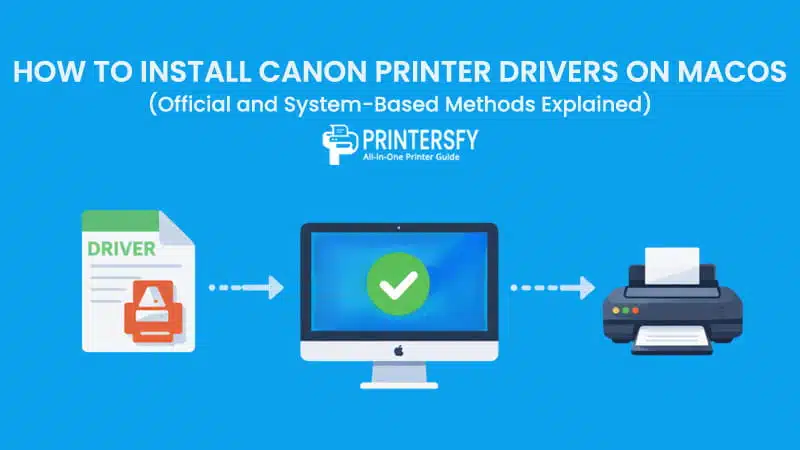
Installing a Canon printer on macOS rarely follows a single, predictable path. On paper, the process looks simple. In practice, many users discover that a printer can be connected, detected, and still refuse to behave as expected. This is why attempts to Install Canon Printer Drivers on macOS often feel inconsistent across different systems, even when the printer model stays the same. A setup that works instantly on one Mac can fail quietly on another.
The reason sits beneath the surface. macOS, Canon hardware, and the printer driver operate in three distinct layers, each with its own rules. macOS prioritizes system stability and security. Canon focuses on device features and model-specific behavior.
The driver acts as the bridge, translating between the two. When that bridge is missing, outdated, or partially compatible, symptoms appear—ranging from limited print options to a Canon printer not detected on Mac at all.
Because of this layered design, Canon printer driver macOS behavior depends heavily on how the driver is introduced into the system. Some installations rely on Canon-managed tools, while others depend on macOS itself to select and manage the driver.
Both paths can lead to a working printer, but they behave differently once installed. Understanding these differences matters more than simply repeating the steps to Install Canon Printer Drivers on macOS, especially when reliability and feature access are the goal.
How to Install Canon Printer Drivers on macOS

On macOS, the installation outcome is shaped less by the printer itself and more by how the driver enters the system. Canon printers can be introduced through tools managed directly by Canon, where detection and configuration are handled inside a single application. This path emphasizes convenience and automation, especially during initial setup.
Installing Canon Printer Drivers Using Canon Setup or Canon PRINT App
Canon provides a vendor-managed installation path through its Setup utility and Canon PRINT app. Instead of relying on macOS to select and configure a driver, this approach allows Canon to control how the printer is introduced to the system. For many users trying to Install Canon Printer Drivers on macOS, this path feels straightforward because most technical decisions are handled automatically.
The installation flow through Canon’s app generally follows a consistent pattern:
- Downloading the appropriate Canon printer driver download Mac package from Canon’s official support site
- Launching Canon Setup or the Canon PRINT app to detect the printer over USB or the local network
- Allowing macOS to install the required driver, utilities, and background services
- Completing initial configuration before the printer becomes available in system settings
Because this process is managed by Canon, the result is more than a basic driver. Canon printer installation on Mac through the app typically includes printer utilities, status monitors, and background components that maintain communication between the printer and macOS. This is why users often see fuller feature access compared to system-managed installations, particularly on consumer inkjet models.
This method tends to work best in predictable environments. Newer Canon printers, default macOS configurations, and standard home networks align well with Canon’s assumptions. In these cases, attempts to Install Canon Printer Drivers on macOS through the app often succeed without manual intervention, making it a practical option for first-time setups.
Detection issues are where limitations appear. It is not uncommon for the app to fail to locate a printer that macOS already recognizes, leading to situations where a Canon printer not detected on Mac message appears inside the app while the device is visible at the system level. This usually reflects differences in how Canon printer software Mac scans for devices, rather than a physical connection problem.
System updates introduce another variable. On Apple Silicon machines, background services installed by older Canon packages may be restricted after a major macOS update. The printer can remain installed but behave inconsistently. In these cases, repeating the attempt to Install Canon Printer Drivers on macOS through Canon’s app may reinstall the same components without resolving the underlying compatibility issue.
Using Manual Canon Printer Driver Installation

Unlike Canon’s app-based setup, manual driver installation places control at the macOS system level. The printer is not introduced through a bundled utility, but through drivers that macOS recognizes directly. This approach is not a secondary fallback. For many environments, it defines the most predictable way to Install Canon Printer Drivers on macOS, especially when long-term stability matters more than convenience.
Manual installation changes the order of operations. Instead of detecting the printer first and then deciding how to support it, macOS is given a driver in advance and asked to bind that driver to the device afterward.
The outcome depends heavily on which driver path is chosen, because each one exposes a different balance between features, compatibility, and system control. Understanding these paths is often more important than repeating the steps to Install Canon Printer Drivers on macOS, particularly on newer macOS releases.
via Canon Official Driver
Canon’s official drivers offer the most direct link between the printer’s hardware capabilities and macOS. For inkjet models, this usually means the Canon IJ printer driver Mac package. Office and workgroup printers rely on Canon UFR II driver macOS builds, which are designed for higher throughput and shared environments. While both originate from Canon, they serve distinct usage patterns.
The installation flow using an official driver typically looks like this:
- Downloading the correct Canon official printer driver Mac package for the exact printer model
- Running the installer to register the driver with macOS
- Adding the printer in system settings so macOS can associate it with the installed driver
This path matters because many advanced features depend on it. Duplex printing, ink or toner status reporting, and fine-grained resolution controls are usually unavailable unless the correct Canon driver is present. Users who Install Canon Printer Drivers on macOS through official packages often notice that print dialogs expose options that remain hidden when generic drivers are used.
Official drivers are also more accommodating to older hardware. Printers that predate recent macOS versions often continue to function when paired with legacy IJ or UFR II drivers. The limitation is compatibility enforcement. On macOS Ventura and Sonoma, stricter security rules mean some older drivers load only partially. Canon printer driver compatibility macOS issues usually appear after system updates, not during initial installation.
In these cases, reinstalling the same package rarely changes the outcome. The driver installs, but macOS restricts how it operates. The result is a printer that appears available but behaves inconsistently, even though the attempt to Install Canon Printer Drivers on macOS completed without errors.
via macOS Add Printer
When a printer is added directly through macOS system settings, the operating system decides which driver to use. This decision is based on available local drivers, cached Canon profiles, or generic alternatives. The process feels simple, which is why many users add a device this way without realizing a driver choice has already been made.
The typical flow looks like this:
- Opening system settings and selecting the option to add Canon printer on macOS
- Allowing macOS to detect the printer over USB or the network
- Letting the system automatically assign a compatible driver
This approach works well for quick setups, but it carries trade-offs. macOS Canon printer setup through automatic selection often prioritizes basic compatibility over feature completeness. The printer may install instantly, yet advanced options remain unavailable. This is a common reason users later report that a Canon printer is working but lacks expected controls.
Connection type also matters. USB-connected printers are more likely to trigger a specific Canon driver if one is cached locally. Network printers, especially on mixed environments, often fall back to generic drivers. When that happens, Canon printer not working macOS complaints usually reflect missing features rather than outright failure.
Because macOS handles everything silently, repeating attempts to Install Canon Printer Drivers on macOS through this path can produce different results depending on what drivers are already present on the system.
via AirPrint / Generic Driver
AirPrint represents a driverless printing model. Instead of installing a traditional driver, macOS communicates with the printer using standardized network protocols. Canon printer AirPrint macOS support is common on wireless models, making this path attractive for fast setup.
The setup process is minimal:
- Connecting the printer to the same network as the Mac
- Adding the printer through system settings using AirPrint or a generic profile
- Printing without installing a dedicated driver package
Stability is the main advantage. AirPrint rarely breaks after updates, which is why many users successfully Install Canon Printer Drivers on macOS this way without touching Canon software. However, the trade-off is functionality. Print quality controls, finishing options, and detailed status feedback are often unavailable.
Canon printer wireless setup macOS via AirPrint makes sense for basic documents and shared environments where consistency matters more than customization. It becomes limiting for photo printing or office workflows. Generic printer driver Mac behavior follows the same pattern: reliable, but constrained.
Problems arise when expectations are mismatched. AirPrint works until users need features it cannot expose. At that point, the printer appears functional, but the experience feels incomplete.
Canon Printer Driver Options on macOS – Feature Comparison
| Driver Type | Installation Source | Feature Support | Stability | Best Use Case |
|---|---|---|---|---|
| Canon IJ Driver | Canon Official Site | Full | High | Home & photo printing |
| Canon UFR II | Canon Official Site | Full (Office) | Very High | Office / workgroup use |
| macOS Auto Driver | macOS System | Medium | Medium | Quick, minimal setup |
| AirPrint | Network / Router | Limited | High | Basic wireless printing |
macOS Compatibility Factors That Affect Canon Printer Installation
Driver behavior on macOS is shaped as much by the operating system as by the printer itself. Differences between Intel-based Macs and Apple Silicon systems influence how drivers load, how background services run, and how security rules are enforced. These differences often explain why the same steps to Install Canon Printer Drivers on macOS produce different results on different machines.
Apple Silicon systems rely on stricter driver validation. Packages that worked for years on Intel Macs may install but operate with reduced functionality. Canon printer driver M1 M2 Mac behavior reflects this shift, especially when older drivers rely on deprecated components.
System updates amplify the effect. macOS Ventura and Sonoma introduce tighter controls that can disable background services installed by legacy drivers. Users commonly report that printing worked before an update, then degraded afterward. Canon printer driver macOS Ventura and Canon printer driver macOS Sonoma issues are rarely caused by user error. They reflect a change in what the OS allows drivers to do.
Driver deprecation is the final factor. Canon eventually retires support for older models, while macOS continues to evolve. When those timelines diverge, reinstalling or switching installation paths rarely restores full functionality. This is why attempts to Install Canon Printer Drivers on macOS sometimes succeed technically but fail in practice—the system has moved on, even if the printer has not.
Common Installation Issues and Why They Happen
Many Canon printing problems on macOS are not caused by a broken setup, but by how the driver interacts with the system after installation. Users often assume something went wrong during setup when the connection itself is intact, yet printing behavior feels inconsistent.
Common patterns tend to repeat across different models and macOS versions:
- Printer appears idle or offline: A Canon printer offline Mac status usually points to a mismatch between the active driver and how macOS manages printer states, not a failed connection.
- Print jobs enter the queue but never complete: The printer is listed, jobs are sent, but nothing prints. This behavior often reflects a Canon printer driver not working macOS situation where the driver loads but does not communicate fully with required background services.
- Driver installs successfully, but the printer does not appear: Users trying to Install Canon Printer Drivers on macOS may assume detection failed. In reality, the driver can be present while macOS refuses to bind it to the device, leading to a Canon printer not detected on Mac message despite a correct installation process.
- Reinstalling produces the same result: Once macOS has cached a driver choice or restricted a background component, repeating the same installation path often recreates the same outcome, even though each installation technically completes without errors.
Framed this way, these issues reflect how macOS enforces driver behavior rather than simple setup mistakes. Repetition rarely changes the result when the underlying driver path remains the same.
Driver Source, Security, and Long-Term Stability
Where a driver comes from matters as much as how it is installed. Third-party driver sources may promise quick fixes, but they introduce risks that go beyond functionality. Unsigned or outdated packages can conflict with macOS security controls, leading to instability long after users Install Canon Printer Drivers on macOS.
Canon official vs macOS system drivers represent a safer boundary. Canon support driver macOS packages are designed to expose device features, while macOS system drivers prioritize compatibility and sandboxing. Both follow Apple’s security requirements, which reduces the chance of silent failures caused by blocked services or revoked permissions.
Permissions play a quiet but important role. Printer drivers often rely on background services to monitor status and handle jobs. When macOS restricts these services—usually after updates—drivers installed from less controlled sources are affected first. Canon official printer driver Mac packages are more likely to be updated to reflect these changes, even if feature support becomes limited over time.
Long-term stability often comes down to trade-offs. Convenience-focused setups may work quickly but degrade after system updates. More conservative driver choices may feel limited at first, yet remain reliable across macOS versions.
Conclusion
Installing a Canon printer on macOS is rarely about following the “right” steps in the right order. The result depends far more on which driver path is chosen and how that path aligns with macOS system rules. Whether users rely on Canon-managed tools or system-level drivers, the experience to Install Canon Printer Drivers on macOS is shaped by compatibility, security enforcement, and driver lifecycle decisions.
When driver behavior is viewed as the deciding factor, installation outcomes become easier to interpret. Some setups favor full feature access, others trade flexibility for stability, and a few fall somewhere in between. Seen this way, inconsistencies stop feeling random, and installation problems are less about repeating steps and more about selecting a foundation that macOS can sustain over time.
FAQs About How to Install Canon Printer Drivers on macOS
How to load printer drivers on Mac?
Printer drivers load automatically when macOS recognizes a supported device, but manual instal driver printer is sometimes required. When users Install Canon Printer Drivers on macOS using official Canon packages, the driver is registered first, then bound to the printer through system settings. This ensures macOS knows which features the printer supports.
Why is my Mac not finding my Canon printer?
This usually happens when macOS cannot match the printer with an active driver. Even if the driver is installed, macOS may refuse to bind it, leading to detection issues. In these cases, repeating how you Install Canon Printer Drivers on macOS rarely helps unless the driver path changes.
Does Canon have a printer app for Mac?
Yes. Canon offers Canon Setup utilities and the Canon PRINT app, which manage driver installation and configuration for many consumer models.
Where can I download the Canon printer driver?
Drivers are available from Canon’s official support site, matched by printer model and macOS version.
Does the Canon printer have a desktop app?
Some models include desktop utilities, but long-term stability still depends on how you Install Canon Printer Drivers on macOS and which driver is used.