

Printer software is more than just a driver you install once and forget. It acts as the translator between your computer or mobile device and the physical printer, ensuring that every file—from a simple text document to a complex photo—comes out exactly as intended. Without this layer of software, the printer itself would not know how to process data, adjust ink usage, or even communicate basic commands like “print” or “cancel.”
The importance of printer software has grown as printers themselves have evolved. In the past, most printers required only a basic driver to function. Today, modern devices depend on a suite of tools that handle everything from wireless connectivity and cloud printing to advanced color calibration and security controls. For businesses, software also manages costs by tracking usage and preventing waste, while home users benefit from apps that make printing from smartphones seamless.
Understanding how printer software works, the different types available, and why it matters can save users countless hours of frustration. More importantly, it provides a clearer perspective on why updating or choosing the right software is just as essential as picking the right printer model.
This guide takes a closer look at what printer software really is, how it functions behind the scenes, the varieties available, and the reasons it remains a critical part of everyday printing—whether at home, in school, or in the office.
What Is Printer Software?
At its simplest, printer software refers to the collection of programs that allow a printer to communicate with a computer, smartphone, or other device. Without it, a printer would just be a piece of hardware with no way to understand digital commands. The software acts like a translator: it converts the information you send—whether a Word document, PDF, or high-resolution image—into a format the printer can process and reproduce on paper.
Definition and Core Purpose
Printer software is often confused with drivers, but the term actually covers a wider scope. A driver is the basic software component that tells the operating system how to talk to the printer. However, beyond drivers, there are utilities for maintenance, calibration tools, management systems for handling multiple devices, and mobile apps for wireless printing. Together, these create a complete ecosystem that supports every stage of printing—from sending a job to maintaining long-term performance.
In technical terms, printer software ensures two main functions: communication and control. Communication means transferring data from a device to the printer in the correct language or “print language” (such as PCL or PostScript). Control involves adjusting settings like resolution, color depth, or duplex printing so the output matches the user’s expectations.
Historical Context
Printer software has come a long way since the early days of computing. In the 1980s, dot-matrix printers relied on simple drivers bundled with operating systems like MS-DOS. These were basic at best, offering little customization. As inkjet printers and laser printers became popular in the 1990s, manufacturers began developing more sophisticated utilities to manage ink consumption, print quality, and device diagnostics.
By the 2000s, as offices scaled up and required network printing, software solutions expanded to include print management tools. These allowed administrators to track usage across multiple users, enforce quotas, and integrate security protocols. In more recent years, the rise of mobile devices and cloud storage has further transformed printer software. Apps like HP Smart or Epson iPrint now let users print directly from their phones, while cloud platforms support remote printing from anywhere with an internet connection.
As printing technology continues to evolve, the definition of printer software also expands. It is no longer just a driver—it is an entire suite of digital tools that makes modern printing reliable, efficient, and user-friendly. This sets the stage for understanding how printer software actually works, which is the foundation for everything else in the printing process.
How Printer Software Works

When you press the print button on your computer or smartphone, the process might look simple. In reality, there’s an intricate sequence happening behind the scenes. Printer software is the engine that translates digital commands into instructions your printer understands, ensuring that the document on your screen comes out correctly on paper.
Communication Between Computer and Printer
The first step in the printing process is communication. A computer generates a file—say a PDF or JPEG—but the printer cannot read these file formats directly. Instead, the printer requires data to be converted into a print language such as PCL (Printer Command Language) or PostScript. Printer software handles this conversion, packaging the file into a stream of commands the printer can interpret.
Without this translation, a document would appear as a string of meaningless code. For example, early computer users sometimes experienced pages full of symbols when trying to print without the right driver. Modern printer software eliminates this issue by bridging the gap between different operating systems, applications, and printer models.
The Role of Drivers
At the core of this communication process is the printer driver. The driver works as a specialized translator between the operating system and the printer hardware. Each printer model requires a specific driver, which explains why installing the wrong one often results in errors or no output at all.
On Windows, many drivers are preinstalled, enabling plug-and-play functionality for common printer models. macOS also comes with built-in support but often requires an internet connection to fetch the latest driver. Linux users, on the other hand, sometimes face challenges since open-source drivers may not always support every printer feature.
Beyond basic functionality, modern drivers allow users to control advanced settings: paper size, duplex printing, print quality, and color calibration. In professional environments such as graphic design studios, these settings are critical because output precision matters as much as speed.
Utilities and Support Tools
While drivers make printing possible, utilities and support tools make the experience smoother. These tools typically come bundled with the driver package or are downloadable from the manufacturer’s website. They serve functions such as:
- Ink and toner monitoring – showing real-time levels and sending alerts when supplies run low.
- Maintenance tools – such as nozzle cleaning and printhead alignment for inkjet printers.
- Firmware updates – which fix bugs, add features, or improve performance.
- Diagnostic software – to identify common problems like paper jams or miscommunication errors.
For example, Epson’s utility suite includes nozzle check and head cleaning functions, while HP Smart provides a dashboard for wireless setup, supply ordering, and troubleshooting tips. These features highlight how printer software extends beyond simple drivers into broader user support.
Behind-the-Scenes Process Flow
A simplified version of how printer software works can be broken down into these steps:
- Application Request – You click “Print” in Word, Excel, or another program.
- Driver Translation – The driver converts the file into printer-friendly language.
- Spooling – The operating system queues the job in memory (print spooler) so multiple documents can be managed efficiently.
- Transmission – Data is sent to the printer via USB, Wi-Fi, or network connection.
- Execution – The printer’s firmware executes commands, pulling paper, applying ink or toner, and producing the final document.
This chain of communication happens in seconds, yet relies heavily on functioning printer software. If a single step fails—such as a corrupted driver or broken spooler—the print job may never complete.
Types of Printer Software
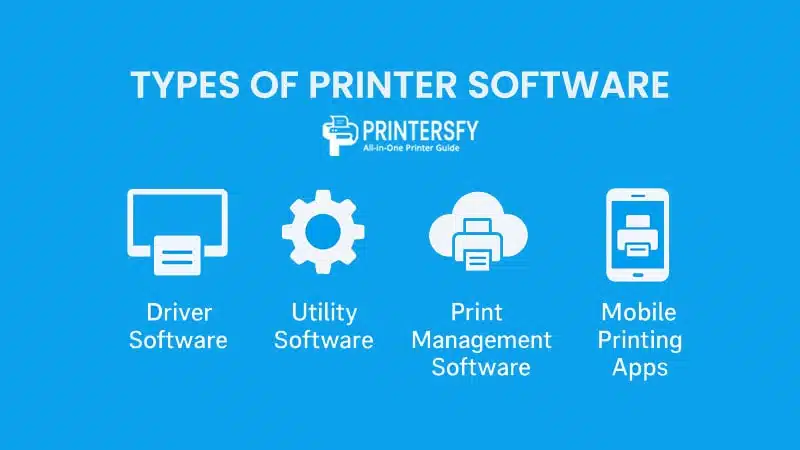
Printer software is not limited to a single program. Instead, it includes a range of tools designed for different functions, from basic printing to enterprise-level management. Understanding the various types helps users choose the right solution for their needs, whether they are printing a homework assignment at home or managing hundreds of devices in a corporate environment.
Driver Software
Driver software is the foundation of all printer operations. Every printer requires a specific driver that matches its model and the user’s operating system. Without it, the device cannot interpret commands correctly.
For home users, installing drivers is often straightforward. Windows and macOS include built-in drivers for many popular printer models, allowing for automatic detection and installation. However, in cases where features are missing—such as advanced duplex settings or resolution adjustments—it is best to download the official driver from the manufacturer’s website.
Real-world example: An HP LaserJet printer may work with Windows’ generic driver, but certain features like secure printing or detailed toner level monitoring only become available with the HP Universal Print Driver.
Utility Software
Utility software complements drivers by focusing on maintenance and user convenience. These tools are usually bundled with the printer package or available as separate downloads.
Common functions include:
- Monitoring ink or toner levels in real time.
- Performing maintenance tasks such as nozzle cleaning, printhead alignment, or firmware updates.
- Diagnosing errors and offering step-by-step troubleshooting.
For example, Epson printers often ship with a utility that lets users clean clogged nozzles. Canon printers include a “My Printer” utility that helps with troubleshooting and quick access to support resources.
Utility software is especially valuable for inkjet users, where regular maintenance can extend printer life and improve print quality.
Print Management Software
In businesses, schools, and organizations, print management software plays a critical role. Instead of focusing on a single device, it oversees an entire network of printers.
Functions include:
- Tracking usage by user or department.
- Controlling costs by setting quotas.
- Restricting access to prevent unauthorized printing.
- Generating reports for auditing and budgeting.
For instance, software like PaperCut MF allows administrators to see who printed what, when, and how many pages. This prevents unnecessary waste and ensures accountability in environments where printing costs add up quickly.
Case study: A university that deployed print management software reduced its overall paper usage by 30% within a year, saving thousands of dollars while promoting eco-friendly practices.
Cloud Printing Software
Cloud printing software enables users to print from anywhere, without being physically connected to a printer. Instead of relying on drivers installed locally, jobs are sent through the internet to a compatible device.
Although Google Cloud Print was discontinued in 2020, many alternatives now exist. HP Smart, Epson Connect, and Microsoft’s Universal Print service allow users to send documents to printers via cloud accounts. This is particularly useful for remote workers, hybrid offices, and schools where students use shared printers.
One key advantage is platform independence: cloud printing works across Windows, macOS, ChromeOS, and even smartphones.
Mobile Printing Apps
With the rise of smartphones, mobile printing apps have become an essential category of printer software. These apps allow direct printing from Android and iOS devices without needing a computer.
Popular examples include:
- HP Smart – wireless setup, scanning, ink ordering.
- Epson iPrint – printing from cloud services like Dropbox and Google Drive.
- Canon PRINT – managing photo printing with advanced color settings.
Mobile apps are not just about printing; many also include scanning, copying, and faxing features through the printer’s multifunction hardware. For home users and small offices, they provide unmatched convenience.
Comparison Table of Printer Software Types
| Type of Software | Primary Function | Typical Users | Examples |
|---|---|---|---|
| Driver Software | Enables basic communication with printer | All users | HP Universal Print Driver, Canon Drivers |
| Utility Software | Maintenance, updates, troubleshooting | Home & office users | Epson Utility, Canon My Printer |
| Print Management | Cost control, usage tracking, security | Businesses, schools | PaperCut MF, uniFLOW |
| Cloud Printing | Remote/cloud-based printing | Remote workers, hybrid offices | Microsoft Universal Print, HP Smart |
| Mobile Printing Apps | Direct printing from smartphones/tablets | Home & small office users | HP Smart, Epson iPrint, Canon PRINT |
The variety of printer software exists because different environments have different needs. A student with a single inkjet printer may never require print management software, while an enterprise managing hundreds of devices would find it indispensable. Similarly, home users benefit greatly from mobile apps, while professional photographers might prioritize utility software that allows fine-tuned color adjustments.
By recognizing the types of printer software available, users can better match their setup to their actual printing habits. This prevents overcomplication while ensuring they don’t miss out on valuable features.
Why Printer Software Matters
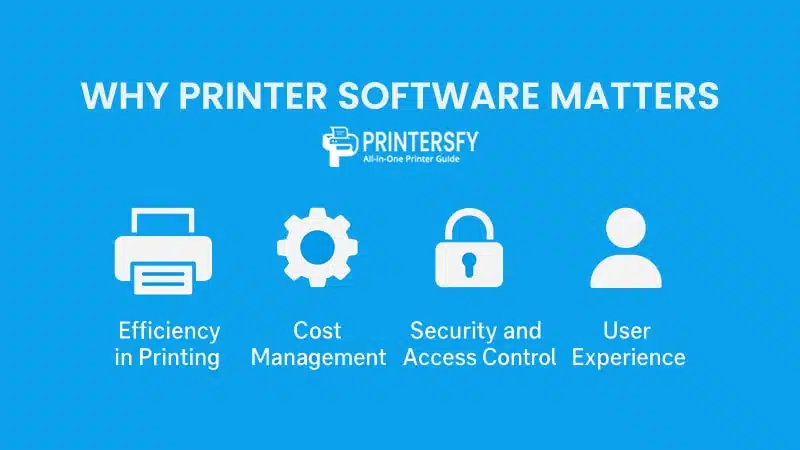
Printers often get labeled as frustrating machines, but the real difference between a smooth experience and a nightmare usually comes down to the software. A reliable set of tools ensures that documents print quickly, colors remain accurate, and users spend less time troubleshooting. In other words, printer software matters because it directly influences efficiency, cost, security, and the overall user experience.
Efficiency in Printing
One of the most obvious benefits of printer software is efficiency. A well-optimized driver reduces the time it takes to process jobs, especially in high-volume environments. According to a review by TechRadar, laser printers paired with optimized drivers can handle bulk text printing nearly 40% faster than models relying on generic drivers. For businesses where hundreds of pages are printed daily, that time savings translates into higher productivity and less downtime.
Even for home users, efficiency plays a role. Utility software that automatically detects paper size or adjusts print settings saves users from trial and error. Instead of wasting sheets on formatting mistakes, the right software ensures the first attempt usually comes out right.
Cost Management
Printer software also helps keep costs under control. Ink and toner remain some of the most expensive consumables in office equipment—so much so that users on the r/printers subreddit often joke about printers being cheaper than their printer cartridges. With software that monitors ink levels and suggests economical modes like “draft printing,” users can reduce waste and stretch consumables further.
In larger organizations, print management software offers even more significant savings. A 2022 report by IDC found that companies using print monitoring tools reduced overall print volumes by an average of 20%, primarily by discouraging unnecessary color printing and enforcing duplex (double-sided) defaults. Those small adjustments, scaled across hundreds of employees, often amount to thousands of dollars in yearly savings.
Security and Access Control
As printers have become networked devices, they also represent potential entry points for cyberattacks. Printer software plays a vital role in securing this environment. Many enterprise tools allow IT administrators to control who can access certain printers, require authentication before releasing sensitive documents, and keep logs of print activity for auditing.
In 2019, Quocirca’s Print Security Landscape report highlighted that 60% of businesses had suffered at least one print-related data breach. Strong software controls—like encrypted job storage or PIN release—dramatically reduce this risk. For small businesses handling client contracts, medical offices processing patient forms, or law firms managing confidential cases, printer software is no longer optional; it’s a security necessity.
User Experience
Finally, printer software shapes the everyday user experience. A well-designed mobile app, for example, can make printing from a smartphone feel seamless—something increasingly important as more people rely on mobile devices instead of laptops. PCMag notes that apps like HP Smart and Epson iPrint have become selling points on their own, with users valuing easy wireless setup, one-tap scanning, and integration with services like Google Drive or Dropbox.
For creative professionals, user experience often revolves around precision. Software that allows detailed color calibration or advanced resolution settings ensures that prints match digital proofs, which is critical for photographers, designers, and marketing teams. Without such tools, output might look dull, oversaturated, or inconsistent—problems that waste both time and money.
In short, printer software matters because it directly affects four critical areas: efficiency, cost, security, and experience. A strong combination of drivers, utilities, management systems, and mobile tools makes printing not just possible but practical, safe, and cost-effective.
How to Install and Update Printer Software

A printer is only as good as its software. Even the best hardware can feel useless if the driver isn’t installed correctly or if the utility software is outdated. Installation and updates are not just technical details—they’re what keep printers compatible with operating systems, secure against vulnerabilities, and reliable for everyday use.
Installing Printer Software on Windows
On Windows, most printer installations are plug-and-play. As soon as you connect a printer via USB or Wi-Fi, the operating system attempts to detect the model and install the necessary driver automatically. However, this process doesn’t always guarantee access to all advanced features.
- Automatic installation: Windows Update downloads basic drivers for common models.
- Manual installation: For full functionality, it’s better to visit the printer manufacturer’s official support page and download the latest driver package.
- Utilities: Many packages include maintenance tools, firmware updaters, and ink level monitors—features that generic Windows drivers often lack.
An HP LaserJet might work fine with Windows’ default driver, but options like PIN-secured printing or toner management will only appear after installing HP’s official driver suite.
Installing on macOS
Apple takes a different approach. macOS includes a large database of printer drivers, and when you connect a new printer, the system automatically matches and installs the correct one. If a driver isn’t available locally, macOS downloads it directly from Apple’s servers.
- Seamless setup: Most users never need to visit a website or install extra software.
- Limitations: Some advanced features, such as full-page bleed printing or advanced duplex settings, might still require manufacturer-specific tools.
- Updates: macOS keeps drivers up-to-date through regular system updates, meaning users benefit from security patches automatically.
Installing on Linux
Linux has made major strides in printer compatibility, but installation can still be a challenge. Many printers rely on CUPS (Common Unix Printing System), which supports a wide range of models out of the box. However, proprietary features sometimes require downloading manufacturer-specific drivers.
- Automatic detection: Ubuntu and Fedora often recognize popular models automatically.
- Manual setup: Some models—particularly new or niche ones—may need users to download drivers from Canon, Epson, or HP’s Linux support pages.
- Community support: Open-source drivers sometimes offer partial compatibility, meaning basic printing works but advanced functions (scanning, duplexing) may not.
A survey by Linux Journal highlighted that HP printers generally have the best Linux support, largely due to HP’s investment in open-source HPLIP (HP Linux Imaging and Printing) drivers.
Updating Printer Software
Keeping printer software updated is just as important as initial installation. Updates fix bugs, improve compatibility with new operating systems, and close potential security gaps.
- Drivers: Should be checked regularly, especially after major OS updates.
- Firmware: Often overlooked, but updating printer firmware can improve speed, add features, and fix vulnerabilities.
- Utilities and apps: Updated versions usually bring better stability and integration with cloud services.
Skipping updates can lead to performance issues. For example, after Windows 11’s rollout, many users experienced printers failing to connect until updated drivers were released. In 2021, Microsoft acknowledged widespread spooler crashes and advised users to update both drivers and firmware to resolve the issue.
Comparison Table: Installing Printer Software Across Platforms
| Platform | Automatic Setup | Manual Steps Needed | Update Method | Notes |
|---|---|---|---|---|
| Windows | Yes (via Windows Update) | Recommended for advanced features | Manufacturer site or Windows Update | Best balance, but official drivers often more complete |
| macOS | Yes (built-in or via Apple servers) | Rarely | Through macOS system updates | Seamless, but advanced functions may require extra software |
| Linux | Partial (via CUPS) | Often required for advanced models | Package manager or manufacturer site | Strong support for HP, mixed for other brands |
Why Updates Shouldn’t Be Ignored
Printer software updates are not just about fixing bugs—they’re also about security. As printers become networked devices, outdated drivers and firmware can leave systems exposed. The Quocirca Print Security Report noted that organizations failing to update printer software faced higher risks of breaches, sometimes through vulnerabilities in outdated spooler services.
For home users, ignoring updates can mean dealing with slowdowns, blank pages, or missing features. For businesses, it can lead to downtime, security gaps, and unnecessary costs. Simply put, updating printer software is a small habit with big benefits.
Best Practices for Managing Printer Software
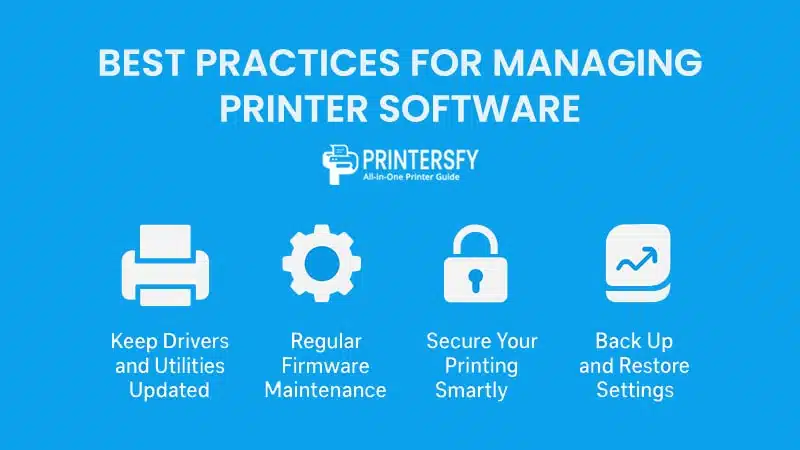
Printer software works best when it’s not only installed correctly but also maintained regularly. Just like you wouldn’t skip oil changes for your car, managing printer software with a few simple habits can prevent most problems before they happen.
Keep Drivers and Utilities Updated
The single most effective habit is to keep drivers and utilities up-to-date. Updates are not just about new features—they often include critical bug fixes and security patches.
- Check monthly: Visit your printer manufacturer’s support page once a month for updates.
- Enable auto-update: Many utilities (like HP Smart or Brother iPrint&Scan) can automatically notify you when updates are available.
- Don’t rely solely on OS updates: While Windows Update or macOS handle many drivers, they may not always include the latest versions.
Consumer Reports notes that outdated drivers remain the number-one cause of printer issues reported by home users, often leading to unnecessary replacements.
Regular Firmware Maintenance
Firmware is the “operating system” inside your printer. Ignoring it can lead to compatibility problems or even security risks.
- Check quarterly: Most manufacturers release firmware updates every few months.
- Always use official sources: Download only from the manufacturer’s site.
- Schedule updates during downtime: Some updates take several minutes and may reboot the printer.
Example,In 2021, HP released a firmware patch to fix Wi-Fi connectivity drops in certain OfficeJet models. Users who ignored the update struggled for months, while those who patched immediately avoided the headache.
Secure Your Printing Environment
Printers on a network can be just as vulnerable as any computer. Good software management includes tightening security.
- Use authentication: Set up PIN codes or login requirements for sensitive documents.
- Encrypt connections: Enable SSL/TLS in printer settings when available.
- Monitor logs: Print management tools can track who printed what, reducing risks of unauthorized use.
According to Quocirca’s Print Security Landscape Report, over 60% of organizations experienced data breaches linked to unsecured printers. Simple steps like enabling authentication and keeping software updated greatly reduce this risk.
Manage Print Settings Smartly
Printer software allows fine-tuning of settings that save both money and resources.
- Default to duplex: Double-sided printing cuts paper usage in half.
- Use draft mode for text: Saves ink without sacrificing readability.
- Color management: Reserve color printing for when it truly matters.
Businesses that enforce these defaults through management software report up to 20% cost savings, as shown in IDC’s 2022 Office Printing Trends Report.
Back Up and Restore Settings
Most utilities include backup options for preferences, network setups, and even security configurations. This is especially helpful in offices where multiple printers are deployed.
- Save profiles: Create print profiles for common tasks (e.g., invoices, reports, marketing materials).
- Export settings: Store configurations on a secure drive so they can be restored after reinstallation or hardware replacement.
Educate Users
Finally, printer software management isn’t only about IT staff or tech-savvy users. Everyday habits also matter. A simple orientation—teaching employees how to cancel jobs, check ink levels, or reset a stuck print queue—can drastically reduce unnecessary support calls.
Even in homes, showing family members how to connect via the mobile app or choose the right print settings prevents “mystery problems” later.
Printer Software Best Practices Checklist
| Practice | Why It Matters | How to Apply |
|---|---|---|
| Keep drivers updated | Fixes bugs & improves compatibility | Check manufacturer site monthly |
| Update firmware | Boosts stability & security | Install official patches quarterly |
| Secure the printer | Prevents data breaches | Enable PIN, SSL/TLS, and log tracking |
| Optimize print settings | Saves cost & resources | Default to duplex, draft mode for text |
| Backup configurations | Avoids rework after crashes | Export profiles & settings regularly |
| Educate users | Reduces support calls & errors | Teach basic troubleshooting & usage |
By applying these best practices, users transform printers from a constant source of frustration into reliable work tools. Instead of reacting to breakdowns, proactive management keeps printing smooth, secure, and cost-effective.
The Role of Printer Software in Everyday Use

Printer software is more than a technical requirement—it shapes how people actually interact with printers day to day. From printing assignments at home to managing sensitive documents in corporate settings, the right software makes the difference between smooth productivity and constant frustration.
Home Use: Convenience Above All
At home, most people don’t think about printer software until something goes wrong. For families, students, and freelancers, the main priority is convenience.
- Ease of installation: Plug-and-play drivers or mobile apps are essential since not everyone wants to tinker with settings.
- Mobile printing: Apps like HP Smart or Epson iPrint allow quick prints from phones, which is often how homework, tickets, or forms are shared.
- Cost control: Utilities that track ink or suggest “draft mode” printing help families save money without compromising quality.
Real-life example: A student printing a last-minute essay can send it directly from Google Docs on their phone via Epson Connect, skipping the hassle of opening a laptop.
Education: Reliability for Students and Teachers
In schools and universities, reliability is everything. Students need consistent access to printers for assignments, while teachers often handle large volumes of worksheets and exams.
- Driver stability: Avoids classroom disruptions where dozens of students share the same machine.
- Cloud integration: Tools that connect with Google Classroom or Microsoft Teams simplify workflows for teachers managing digital resources.
- Secure printing: Prevents sensitive exam materials from being accessed before release.
Case in point: During the pandemic, IDC reported a surge in demand for cloud-connected printers in schools, as teachers needed to print lesson plans from home and deliver them to centralized printers on campus.
Remote Work: Bridging the Home and Office
Remote workers live in two worlds at once—home and professional. Printer software helps bridge this gap by enabling secure access and collaboration.
- Cloud tools: Employees can send documents to office printers for later pickup, reducing the need to keep sensitive files on personal devices.
- Mobile scanning: Apps convert paperwork into PDFs that sync with cloud storage, replacing bulky scanners.
- Firmware updates: Critical for keeping remote printers secure on home Wi-Fi networks, which are often less protected than office environments.
A survey by Quocirca found that over 35% of remote workers experienced print-related security issues, mostly from outdated software. Companies that provided clear update policies and remote management utilities saw fewer problems.
Business: Control, Security, and Efficiency
In business environments, printer software isn’t just about convenience—it’s about control and compliance.
- Centralized management: IT departments rely on enterprise utilities to monitor usage across dozens of printers.
- Cost tracking: Software can attribute print jobs to specific departments, ensuring accountability.
- Secure release printing: Employees authenticate at the device before printing, protecting confidential documents.
Example: A financial firm in Singapore cut printing costs by 18% after deploying a management tool that required employees to log in before releasing jobs. The software prevented accidental reprints and reduced abandoned print jobs.
Small Businesses: Balancing Cost and Simplicity
Small businesses don’t always need enterprise-level solutions, but they still benefit from smart software.
- Utilities for efficiency: Features like auto-duplex and ink usage monitoring help keep expenses in check.
- Cloud and mobile support: Makes it easy for staff to print from laptops, tablets, or phones without extra setup.
- Shared access tools: Even simple print servers reduce chaos in small offices with multiple users.
According to PCMag, small offices that adopted manufacturer utilities like Brother’s ControlCenter saw fewer disruptions and lower supply costs compared to those relying only on OS-level drivers.
Printer Software Use Cases by User Type
| User Type | Main Needs | Key Software Features | Example Benefits |
|---|---|---|---|
| Home Users | Simple setup, cost savings, mobile printing | Basic drivers, ink monitoring, mobile apps | Print homework or tickets from phone, save ink with draft mode |
| Students & Teachers | Reliability, cloud access, security | Stable drivers, Google Classroom integration, secure printing | Easy assignment printing, protected exam materials |
| Remote Workers | Secure access, mobility, cloud sync | Cloud tools, mobile scanning, firmware updates | Print to office remotely, scan and share PDFs instantly |
| Small Businesses | Cost control, shared use | Utilities with duplexing, ink monitoring, simple print servers | Lower supply costs, smoother multi-user access |
| Enterprises | Compliance, efficiency, security | Centralized management, quotas, secure release printing | Reduce abandoned jobs, control costs, meet data security standards |
What all these examples show is that printer software quietly underpins the reliability of modern workflows. Whether it’s a family avoiding surprise ink shortages, a teacher ensuring exam security, or a business saving thousands through smarter management, software makes the printer more than just a box that puts ink on paper—it turns it into a trusted tool.
Future Trends in Printer Software
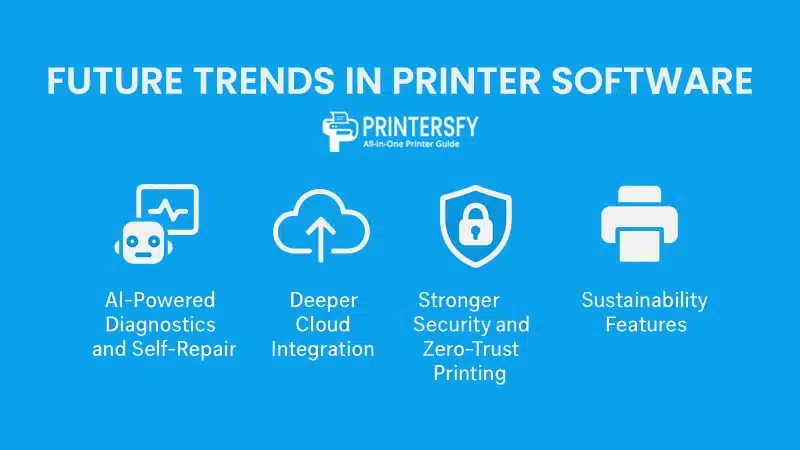
Printer software is evolving rapidly, reflecting broader changes in technology—from artificial intelligence to cloud computing and cybersecurity. While the core function of enabling communication between devices and printers remains, the way software supports users is becoming smarter, more predictive, and more connected than ever.
AI-Powered Diagnostics and Self-Repair
One of the most promising trends is the use of artificial intelligence (AI) for predictive diagnostics. Instead of simply displaying vague error codes, new printer software is beginning to analyze issues in real time and suggest fixes.
- Smart troubleshooting: Instead of “Error 5200,” software may explain “Ink system failure—try cleaning the printhead.”
- Predictive maintenance: AI can detect early signs of nozzle clogging or low toner efficiency and recommend preventive actions.
- Self-healing systems: Some enterprise solutions already auto-correct minor software conflicts without human intervention.
According to HP’s Future of Printing Report, AI-driven monitoring reduced downtime in enterprise settings by up to 30%.
Deeper Cloud Integration
Cloud technology is already reshaping how people print, but future software will integrate even more deeply.
- Universal cloud accounts: Users log in once and access printing from any device, anywhere.
- Collaboration tools: Software will link with platforms like Microsoft Teams or Slack, letting users print shared files directly from chat.
- Edge processing: To improve speed, printers will process jobs locally while still syncing to the cloud for record-keeping.
As IDC notes, the pandemic accelerated adoption of cloud-enabled printers, and this trend is unlikely to reverse as hybrid work becomes the norm.
Stronger Security and Zero-Trust Printing
With printers often overlooked as endpoints, future printer software will adopt stricter security models.
- Zero-trust architecture: Every request—whether from a local PC, a mobile phone, or a cloud service—will be authenticated.
- End-to-end encryption: Documents will remain encrypted until they’re actually printed.
- Automated patching: Firmware and driver updates will be delivered silently in the background to close vulnerabilities faster.
Quocirca’s 2023 Security Landscape Report highlights that 67% of companies now consider printers a high-risk endpoint, pushing manufacturers to prioritize security-first software design.
Sustainability Features
Sustainability is no longer optional—it’s becoming a core part of printer software design.
- Carbon tracking: Some utilities will track how much carbon footprint a print job generates.
- Smart defaults: Software may automatically suggest duplex printing or grayscale for internal documents.
- Ink and toner optimization: Advanced algorithms will adjust color distribution to use supplies more efficiently.
Epson’s EcoTank utilities already nudge users toward eco-friendly habits, and experts predict more manufacturers will follow suit to align with corporate sustainability goals.
Cross-Platform and Universal Printing
Printer software is also moving toward universality, reducing the need for brand-specific apps.
- Driverless printing: Initiatives like Mopria and Apple AirPrint allow devices to print without installing separate drivers.
- OS-level integration: Future versions of Windows and macOS may include universal printer frameworks, reducing reliance on manufacturer updates.
- Multi-device ecosystems: Software will seamlessly connect laptops, tablets, and smartphones, ensuring consistent experiences across devices.
Future Trends in Printer Software
| Trend | What It Means | User Benefit |
|---|---|---|
| AI Diagnostics | Software predicts and explains errors in plain language | Faster troubleshooting, fewer breakdowns |
| Cloud Integration | Printing directly from cloud accounts and collaboration apps | Access from anywhere, seamless teamwork |
| Zero-Trust Security | Every print job fully authenticated and encrypted | Stronger data protection |
| Sustainability Features | Carbon tracking, eco-friendly defaults, ink optimization | Lower costs, greener printing |
| Universal Printing | Driverless and cross-platform compatibility | Fewer setup hassles, works across devices |
For users, this means fewer frustrations with compatibility—especially in mixed-device households or offices.
The future of printer software points toward intelligence, integration, and sustainability. Instead of reacting to breakdowns, printers will anticipate problems, protect data proactively, and help users print more responsibly.
For individuals, this means fewer surprises when printing homework or tickets. For businesses, it promises lower costs, better compliance, and greener operations. As software continues to evolve, the humble printer may finally shed its reputation as a “frustrating office gadget” and become a smarter, more reliable partner in digital workflows.
Conclusion
Printer software may not always be the first thing people think about when buying or using a printer, but it’s the silent engine that keeps everything running smoothly. From the basic drivers that allow a printer to talk to a computer, to advanced utilities that monitor ink, manage costs, and secure sensitive documents, software is what transforms a printer from a simple machine into a versatile tool.
Throughout this guide, we’ve seen how printer software plays a role in every setting. At home, it makes printing homework or last-minute tickets easier. In schools, it ensures reliable access for students and teachers. For remote workers, it bridges the gap between home and office, keeping data secure even over personal Wi-Fi networks. And in business environments, it delivers cost control, accountability, and compliance—features that simply aren’t possible without strong software.
The future of printer software is even more promising. Artificial intelligence will make troubleshooting less stressful by predicting errors before they happen. Cloud integration will continue to grow, allowing teams to collaborate and print from anywhere. Stronger security models will protect against data breaches, while sustainability features will encourage greener habits. Cross-platform compatibility will reduce installation headaches, making printers feel more like plug-and-play devices than ever before.
For users, this evolution means fewer frustrations and more value. Instead of fighting with outdated drivers or cryptic error messages, people can expect printers that anticipate their needs and fit seamlessly into their digital lives. Businesses, in particular, will benefit from tools that cut waste, enhance security, and improve productivity—all driven by smarter software.
In the end, printer software matters because it reflects how we use technology today: connected, mobile, secure, and conscious of cost and sustainability. Whether you’re a student, a home user, a remote worker, or part of a large enterprise, understanding and managing printer software is key to getting the most out of your printing experience. Far from being just an accessory, it’s the foundation of reliable, efficient, and secure printing.
